Skip to content
VendoCerta

The product

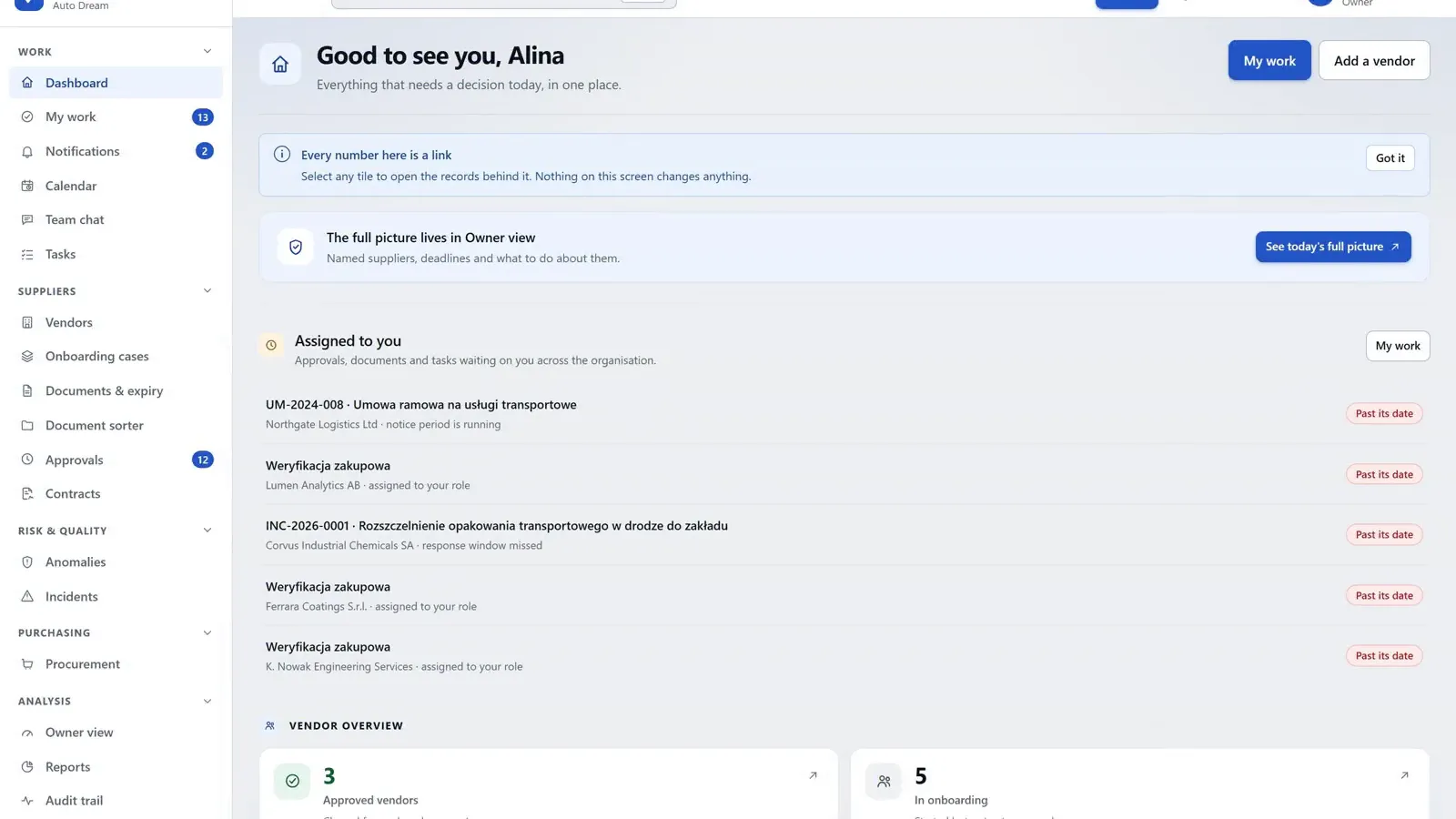
Forty screens, one argument: nothing moves until it is right.

This page walks the whole application, area by area, using captures of the running product. Where a screen behaves in a way that surprises people, it says so — including the places where the surprise is deliberate.

app.vendocerta.com
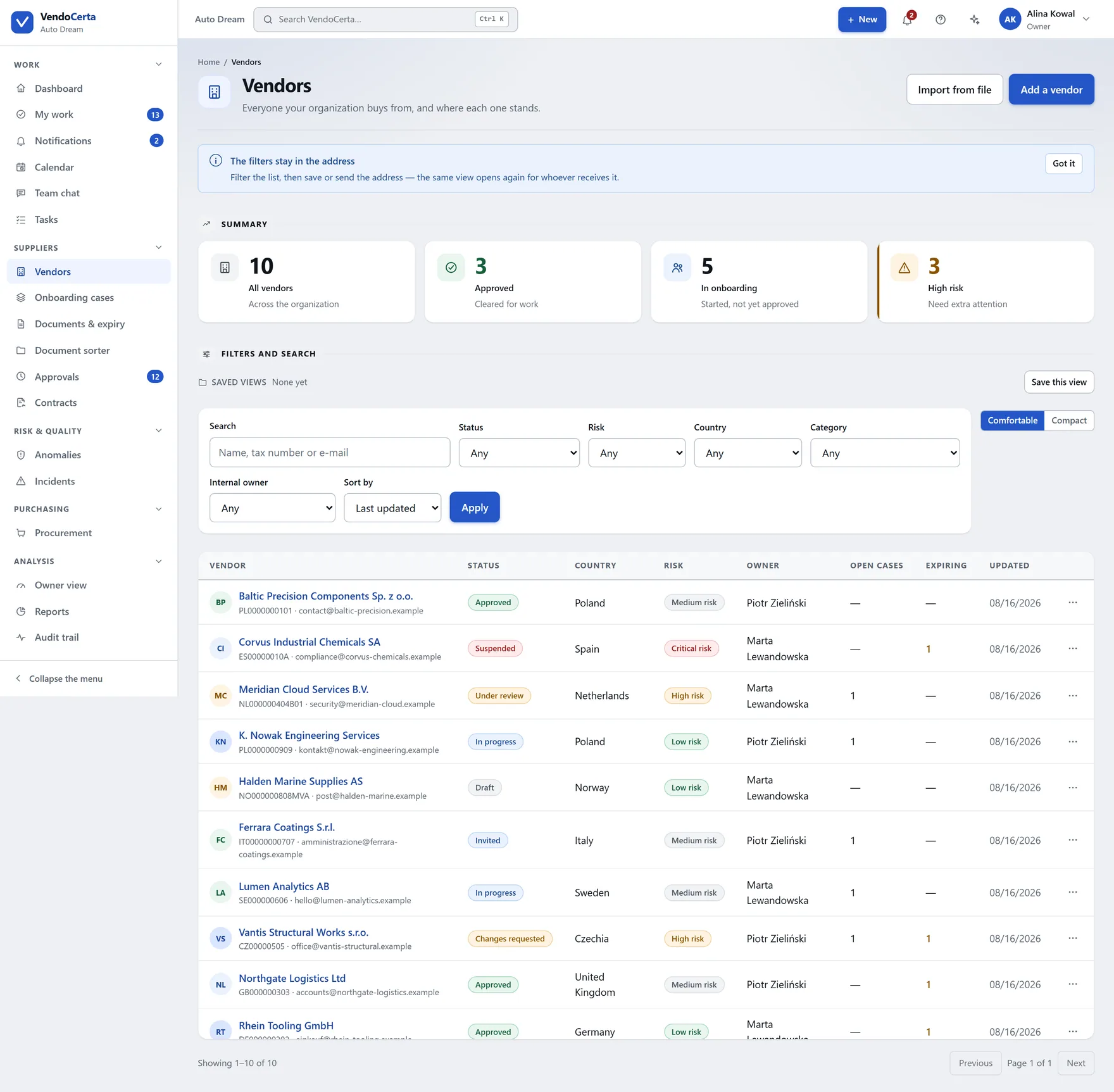
The Vendors screen: summary tiles for all vendors, approved, in onboarding and high risk, above a filterable table of suppliers with status, risk level, country and internal owner.
  1. Dashboard
  2. Vendors
  3. Onboarding cases
  4. Approvals
  5. Audit trail
app.vendocerta.com/vendors
The Vendors screen: summary tiles for all vendors, approved, in onboarding and high risk, above a filterable table of suppliers with status, risk level, country and internal owner.

The register

Everyone you buy from, and what stage they are at.

One place for every supplier whatever stage they are at, with a controlled status, a risk level, a country and a named internal owner. Four summary tiles sit above the filters — and the product is candid that two of them behave differently from what their names suggest.

  • One search box, three fieldsCompany name, tax number and e-mail address are searched at once, so you do not have to know which field the fragment you remember lives in.
  • Tiles that tell the truth about themselves“High risk” sorts rather than filters, and “In onboarding” counts four statuses but opens one — so the number on the tile can exceed the rows you see. The guide says this out loud instead of leaving you to discover it.
  • A named internal ownerEvery supplier belongs to somebody on your side. Filters narrow by that owner, so “what is mine” is a question the list can answer.
app.vendocerta.com/vendors/new
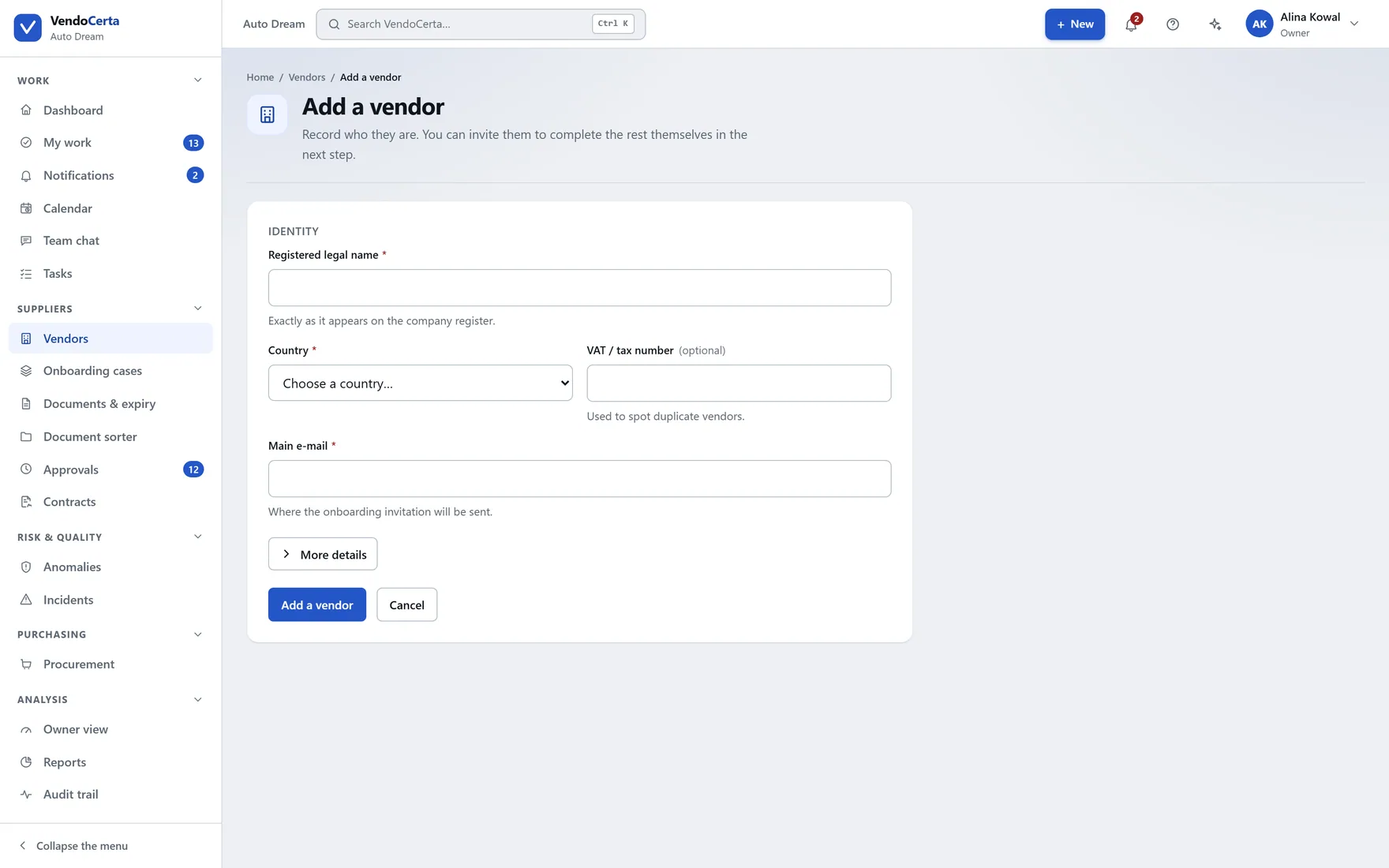
The form for adding a new supplier to the register.

Adding a supplier

A record first, then Start onboarding. Defaults for risk level and language come from company settings, so a new supplier is not a blank form.
app.vendocerta.com/vendors/import
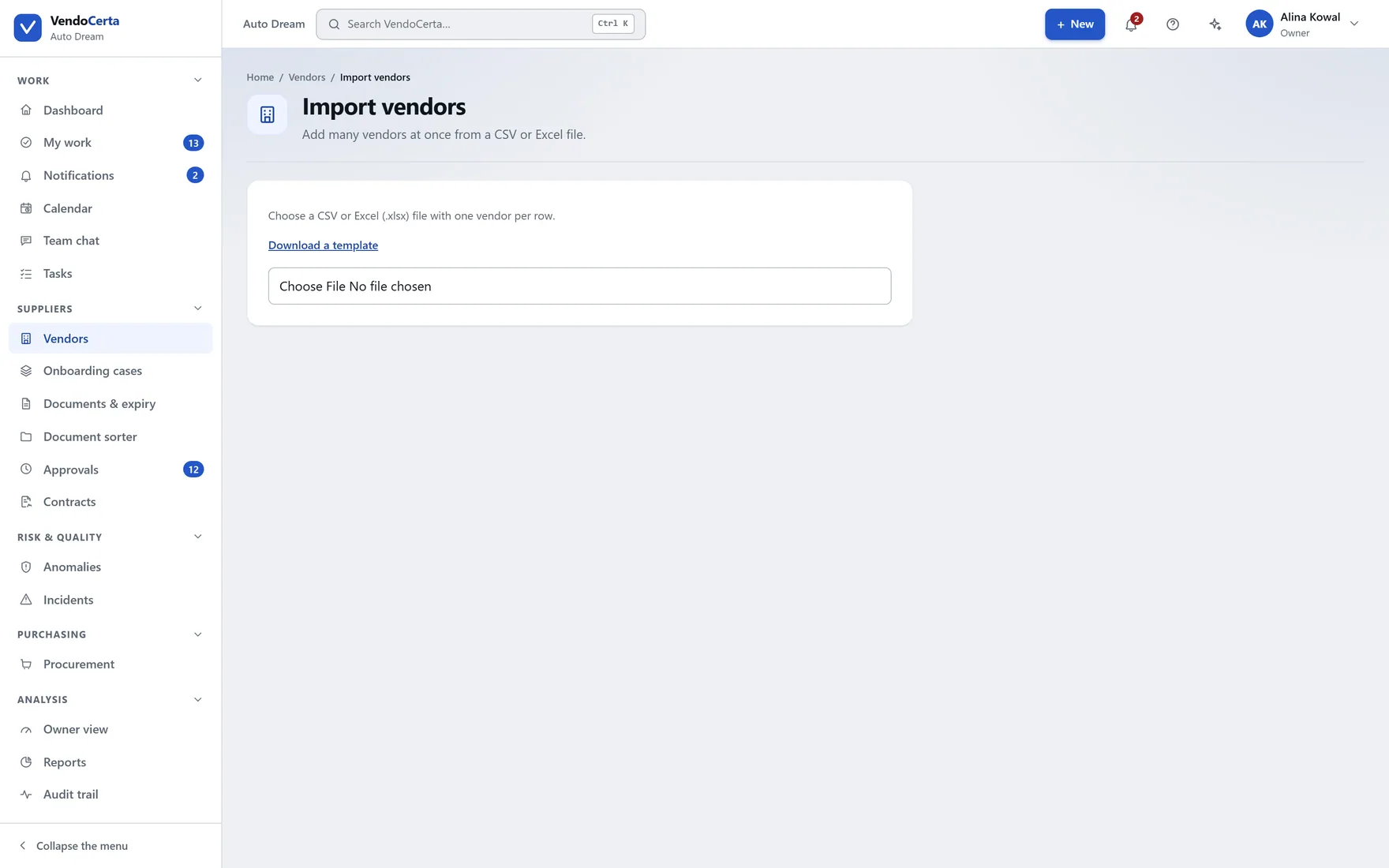
Importing suppliers in bulk from a spreadsheet.

Importing in bulk

Bringing an existing supplier base in from a spreadsheet, rather than typing three hundred rows to get started.
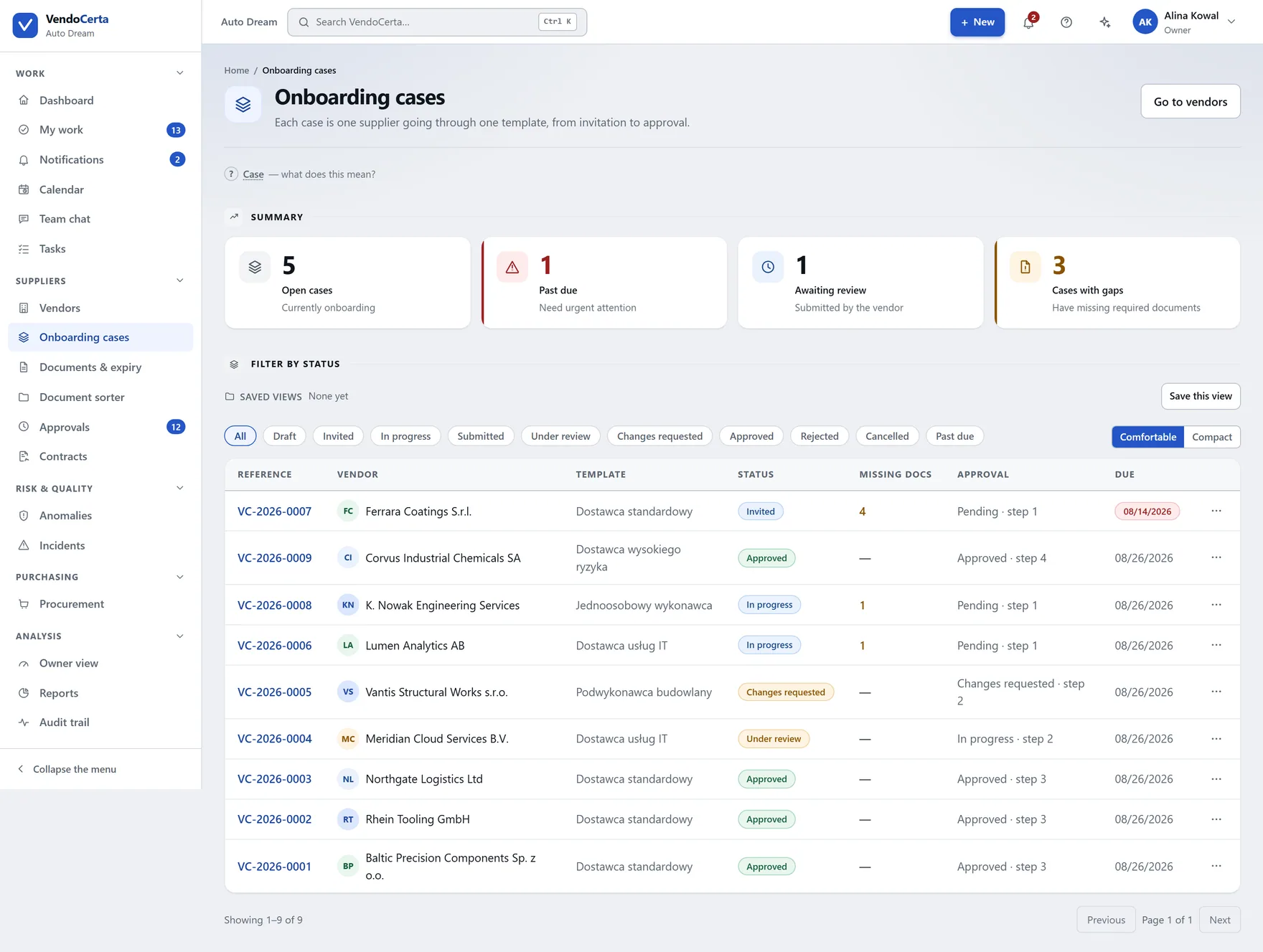
app.vendocerta.com/cases
The onboarding cases list, each case carrying a reference, a status, a template and a deadline.

Cases & the portal

A case is where the work actually happens.

Clicking Start onboarding creates a case with its own reference — VC-2026-0010 — and from that point the case screen, not the supplier record, is where you see what stage things are at. Each case is split into four steps — vendor details, documents, approvals, summary — and opens straight to the one where it is blocked, which is not always the first.
  • One invitation, three fieldsWho it goes to, which language the supplier reads it in, and an optional line of context. Then the supplier gets a personal link — no account, no password.
  • A blocker list, not a greyed-out button“Ready to approve”, or a specific list: this document has not been uploaded, that step has not been decided. Grouped into documents, submitted information and the approval path, five per group.
  • Deadlines and reminders from the templateHow many days the supplier has, and how many days before the deadline they are chased — both set once, on the template, and frozen into the case.
app.vendocerta.com/getting-started
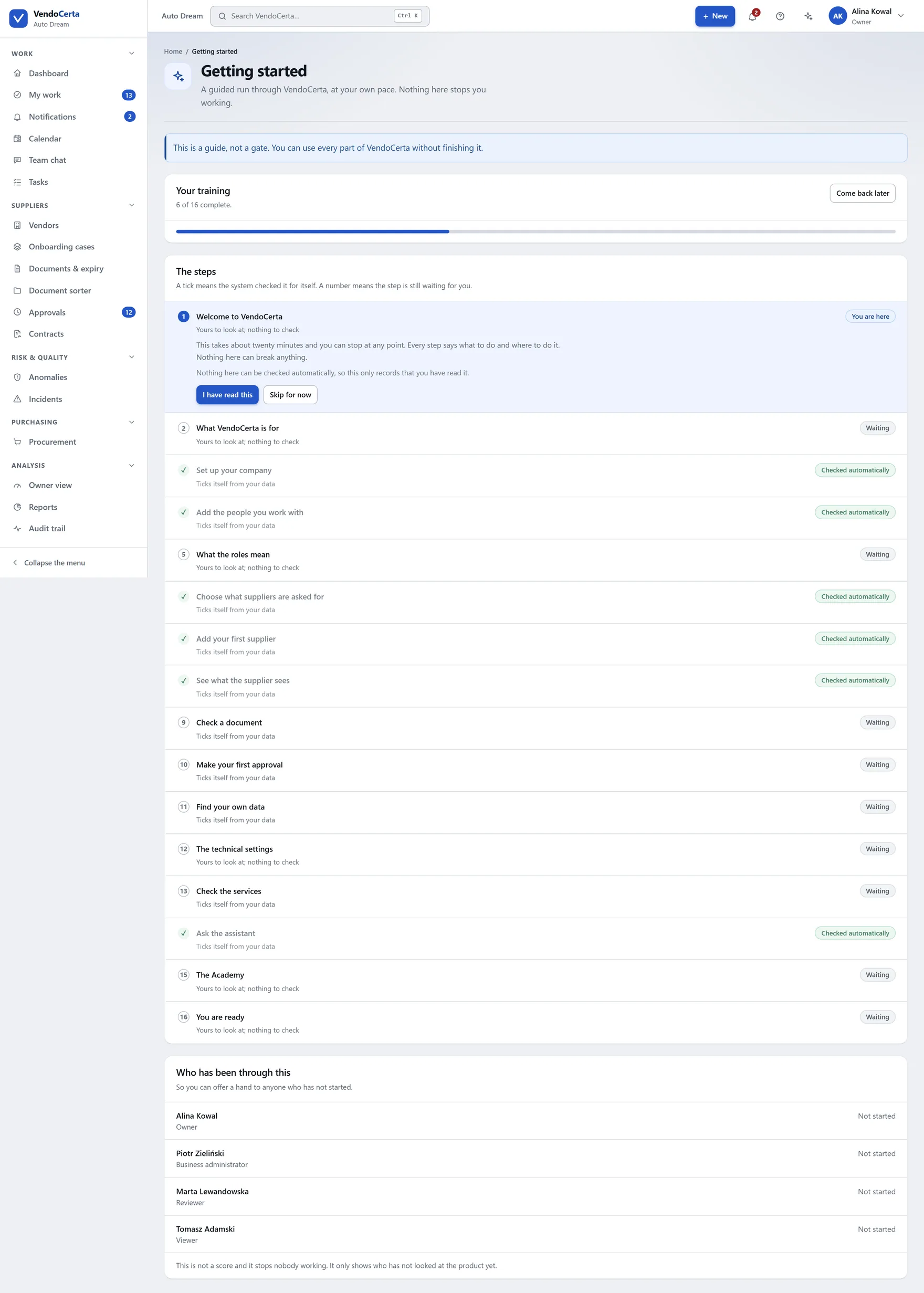
The Getting started screen: a guided run through VendoCerta at your own pace, with a progress bar and a list of steps, some of which the installation ticks off for you automatically.

A new installation walks itself

The Getting started screen is a guided run through the product at your own pace — and, as its own banner says, a guide rather than a gate: every part of VendoCerta works without finishing it. Several steps tick themselves off from your data.
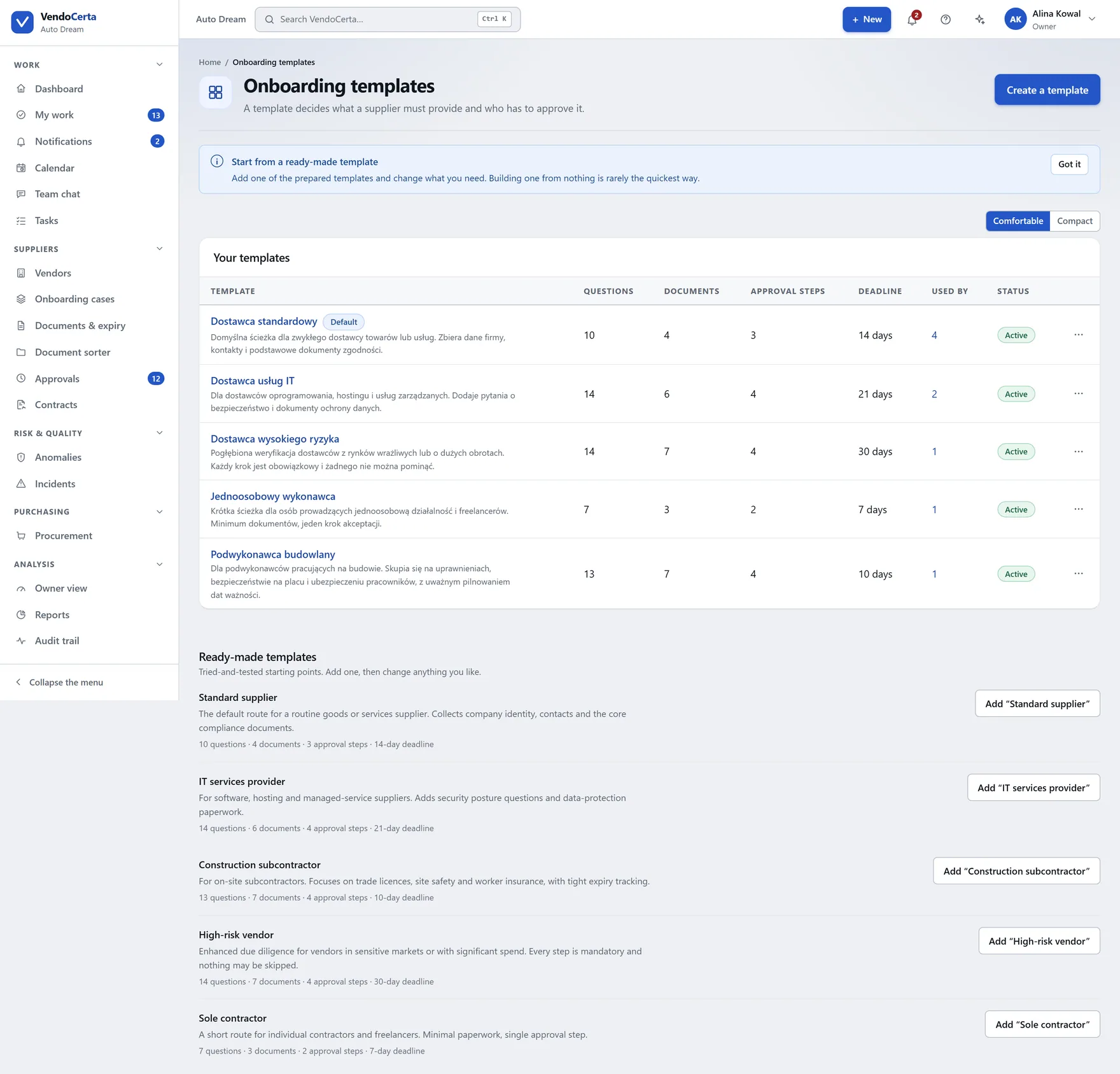
app.vendocerta.com/templates
Onboarding templates — the scenarios deciding which questions a supplier is asked, which documents are required, and who approves in what order.

The templates behind them

Questions for the supplier, required documents, approval steps in order, deadline and reminder days. A case freezes its own copy, so editing a template never rewrites history.
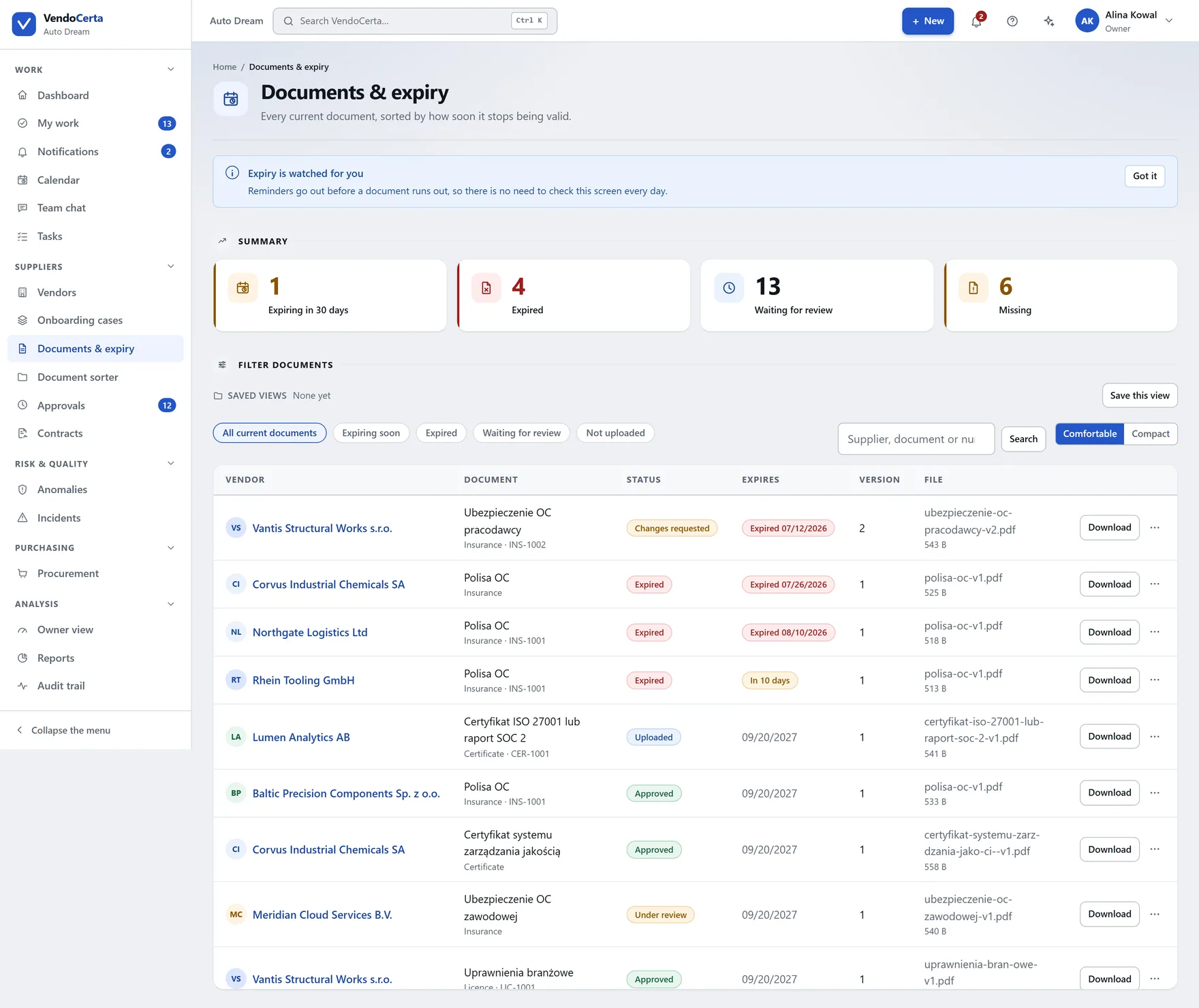
app.vendocerta.com/documents
Documents and expiry: counters for expiring within 30 days, expired, awaiting review and missing, above every current document with its status, version and expiry date.

Documents

Two views, because they answer two questions.

Documents & expiry shows every supplier at once, sorted by what is about to go wrong. The decision itself happens inside a case, next to the requirement it satisfies — accept, request a correction, or reject, each with a reason the supplier sees.
  • A replacement never overwritesA corrected file becomes a new version. The previous one stays in the history with its own download link, which is what makes “what did we actually see when we approved this?” answerable.
  • An expired document loses its Accept buttonDeliberately. Nobody extends the validity of a lapsed certificate with a click; it takes a new file from the supplier.
  • Restricted documents say soA document holding sensitive data is badged. If your role cannot open it, the product says so plainly rather than quietly hiding the download button.
app.vendocerta.com/documents/sorter
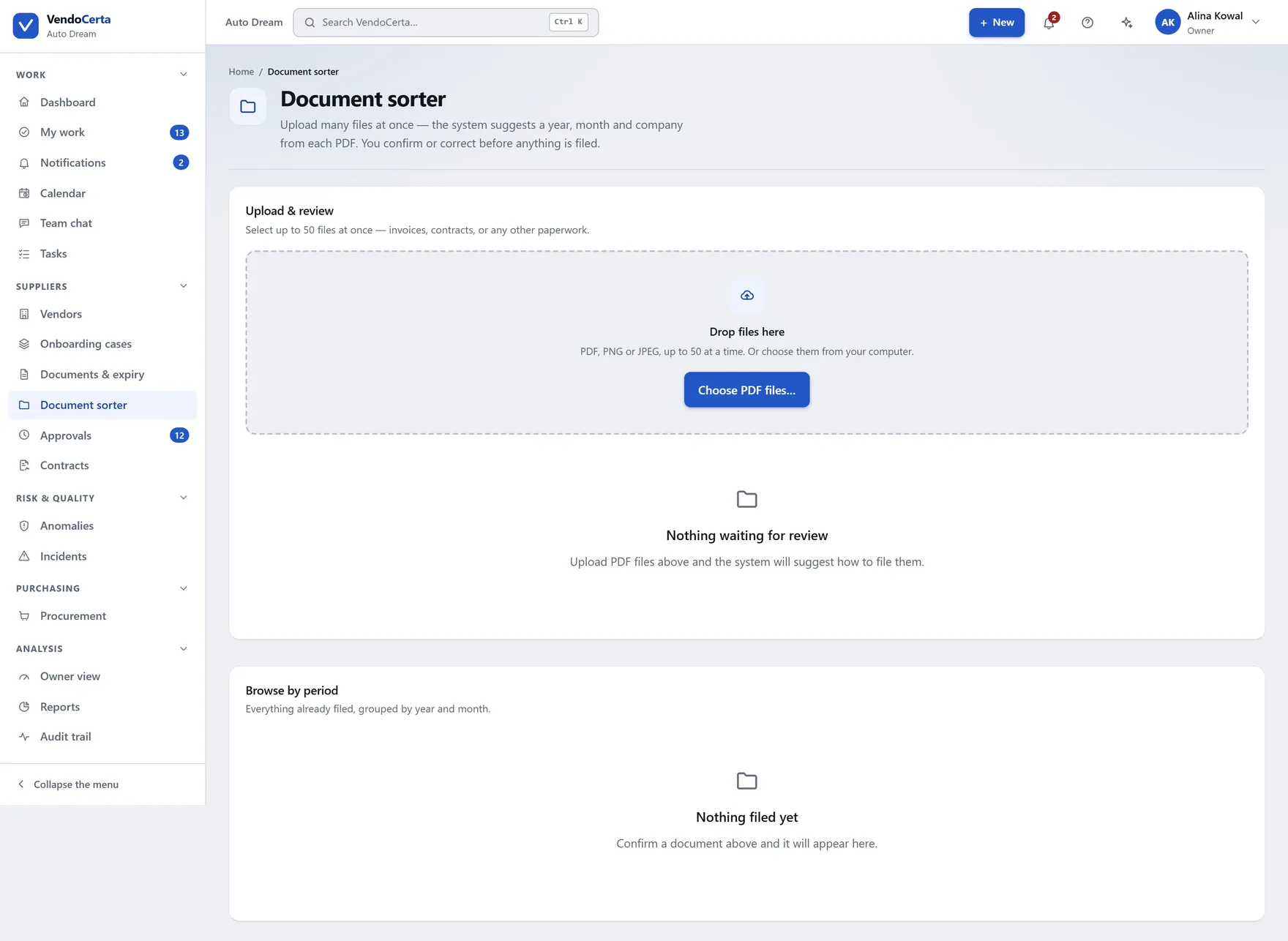
The document sorter, for filing incoming files against the supplier and requirement they belong to.

The document sorter

For files that arrive outside the flow: match an incoming document to the supplier and the requirement it belongs to, instead of filing it by hand.
app.vendocerta.com/checks
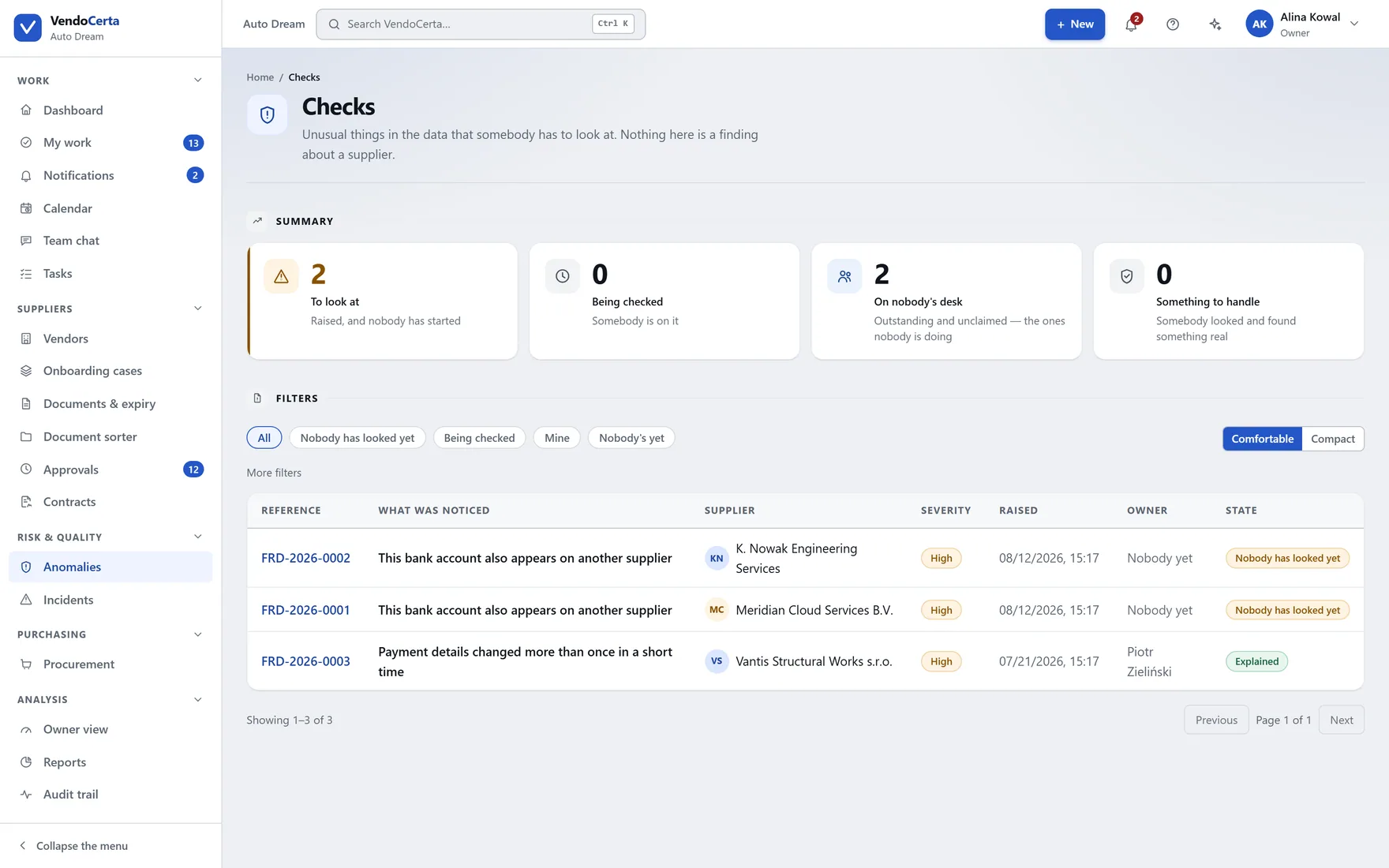
Scheduled checks against suppliers already in the register.

Checks

Scheduled verification against suppliers already in the register — the routine re-look that otherwise depends on somebody remembering.
app.vendocerta.com/approvals
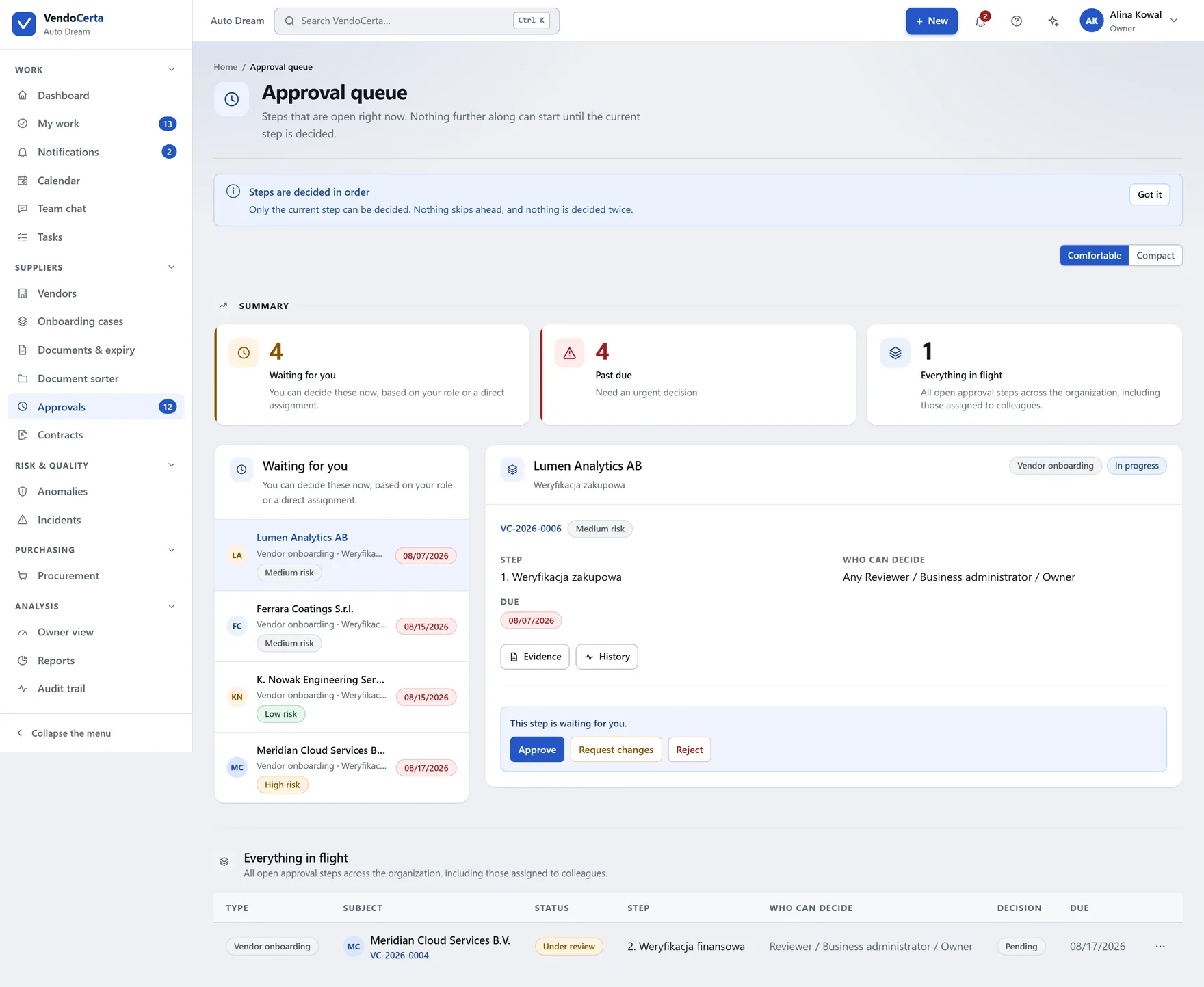
The approval queue: counters for waiting on you, overdue and all in progress, with the decision panel opening beside the queue.

Approvals

A queue you work through, not a screen you leave.

Waiting on you, overdue, all in progress. Click an item and — on a wide screen — a decision panel opens beside the queue, so you handle one after another without navigating back and forth. On a narrower screen the link takes you to the case.

  • Ordered, and gated by roleEach step names who may decide it. The next does not open until the previous is approved and the required document is current and accepted.
  • Refused, with the reason statedIf something mandatory is missing, rejected or out of date, the approval is refused and the product says which. It is the same list the assistant reads when you ask why you cannot approve.
  • One person does not do it all aloneWhere a process needs more than one step, the person who added the supplier or checked the documents need not be the one deciding — and for a bank-account change, the system requires that they are not.

Every day

The queues, dates and conversations around the process.

Onboarding is the spine, but a supplier relationship is contracts running out, incidents to answer, tasks somebody owes and a calendar of dates nobody should be holding in their head.
app.vendocerta.com/my-work
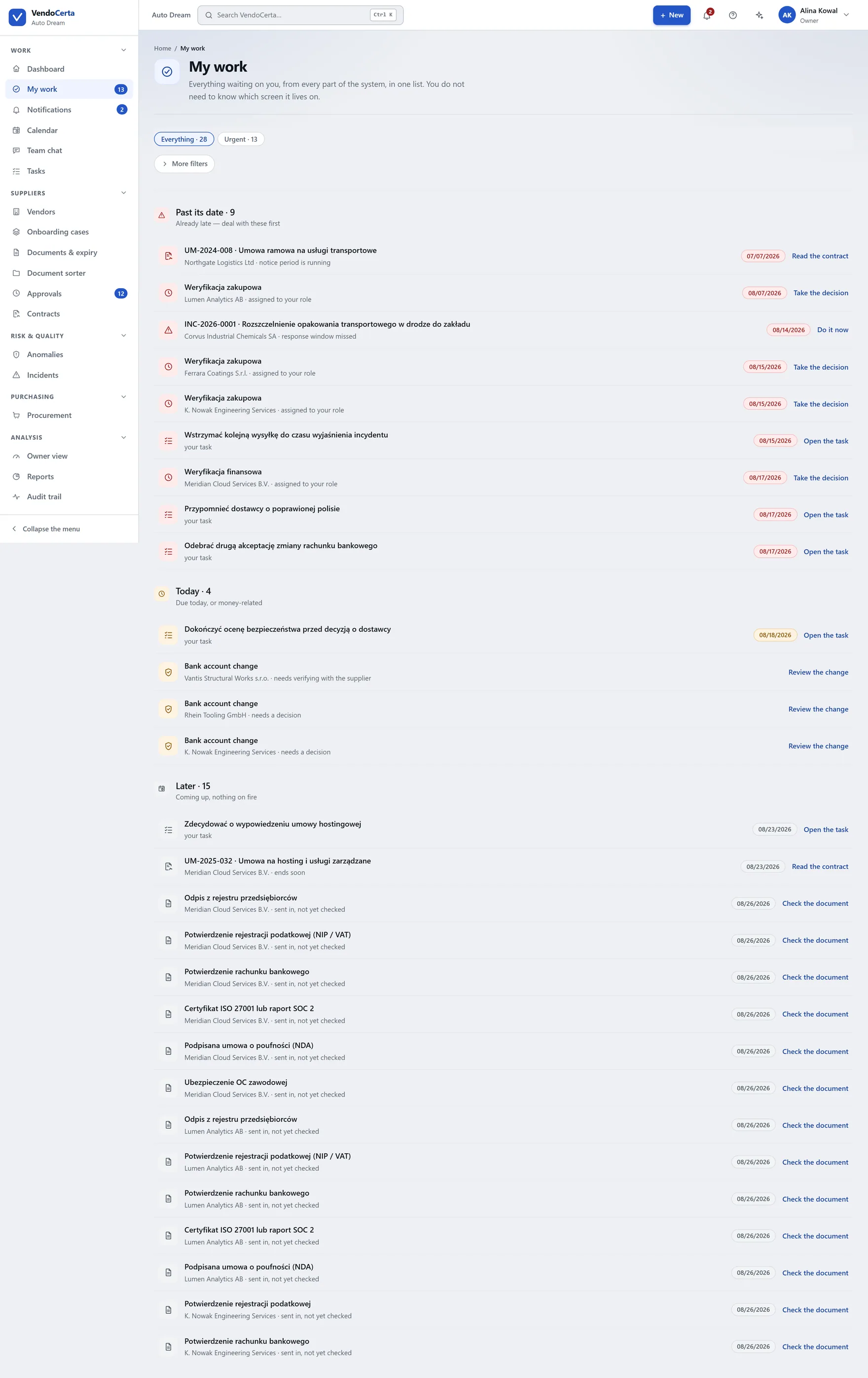
My work: everything assigned to this person across approvals, documents and tasks, in one queue.

My work

Approvals, document decisions and tasks assigned to you, in one queue rather than three screens each holding a third of your day.
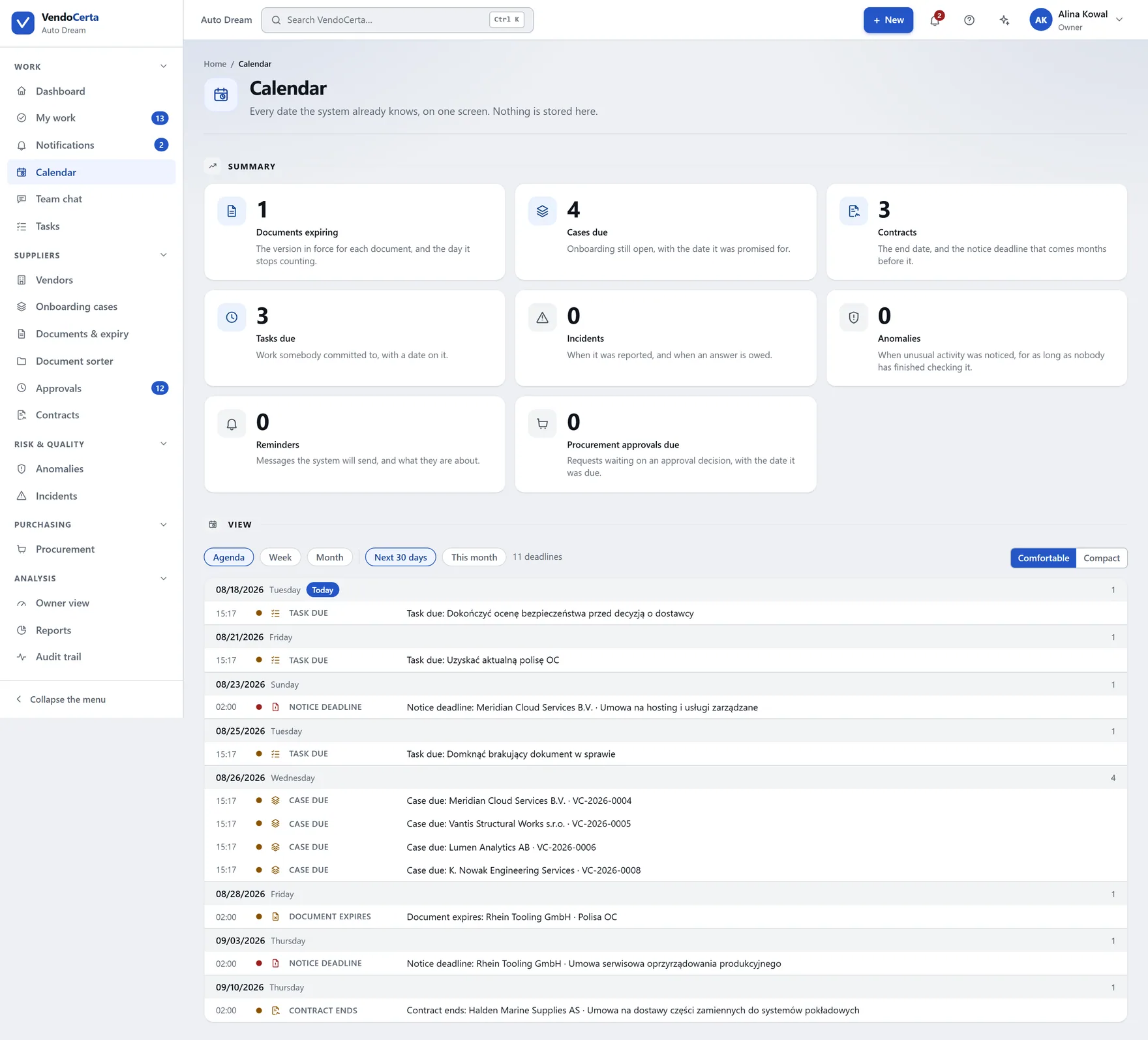
app.vendocerta.com/calendar
The calendar view of every expiry, deadline and notice period.

Calendar

Every expiry, deadline and notice period on one dated view. The same dates the automatic reminders are driven from.
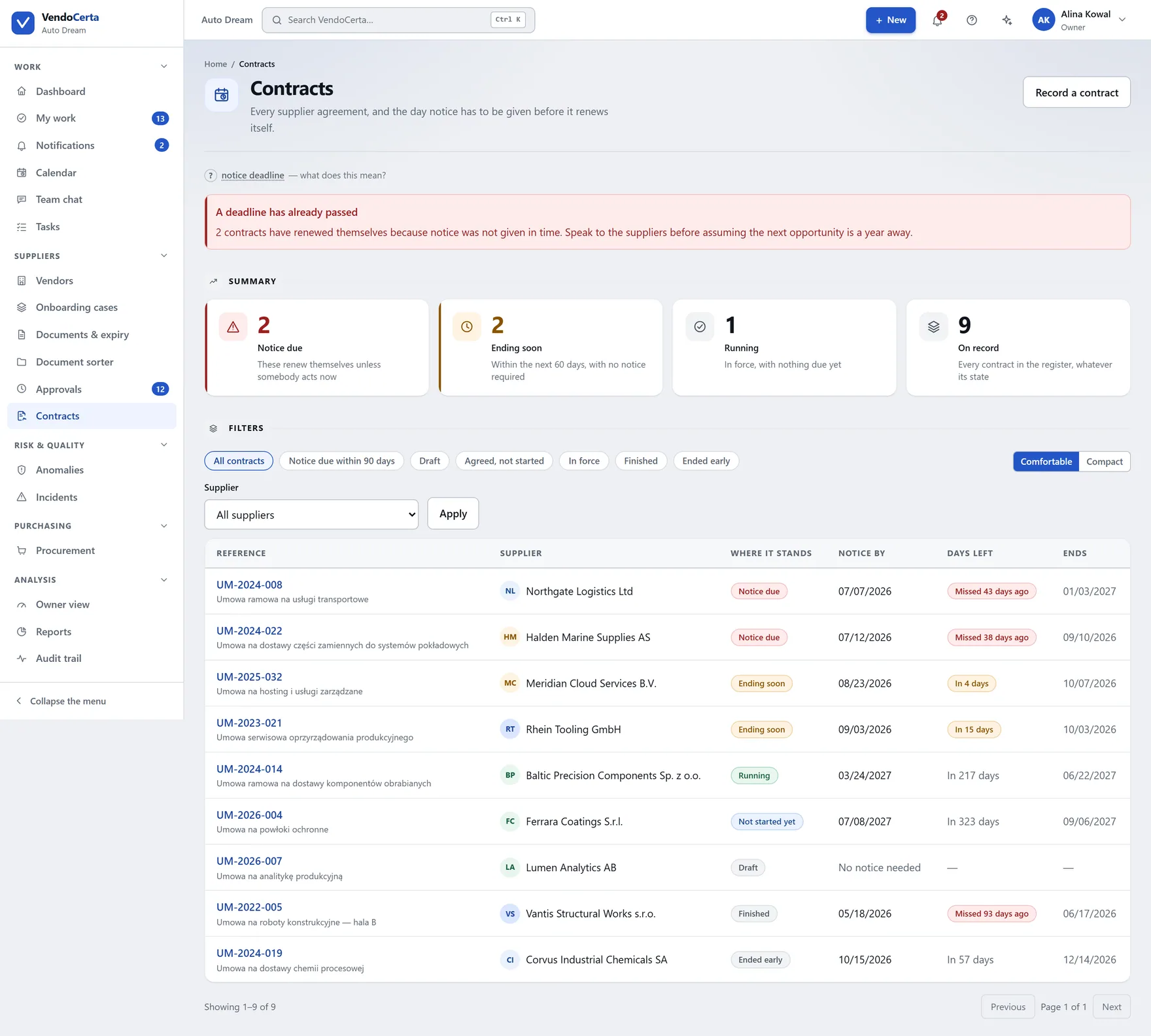
app.vendocerta.com/contracts
Contracts held against the suppliers they belong to, with their dates and notice periods.

Contracts

Agreements held against the supplier they belong to, with their dates and notice periods surfacing in the same queues as everything else.
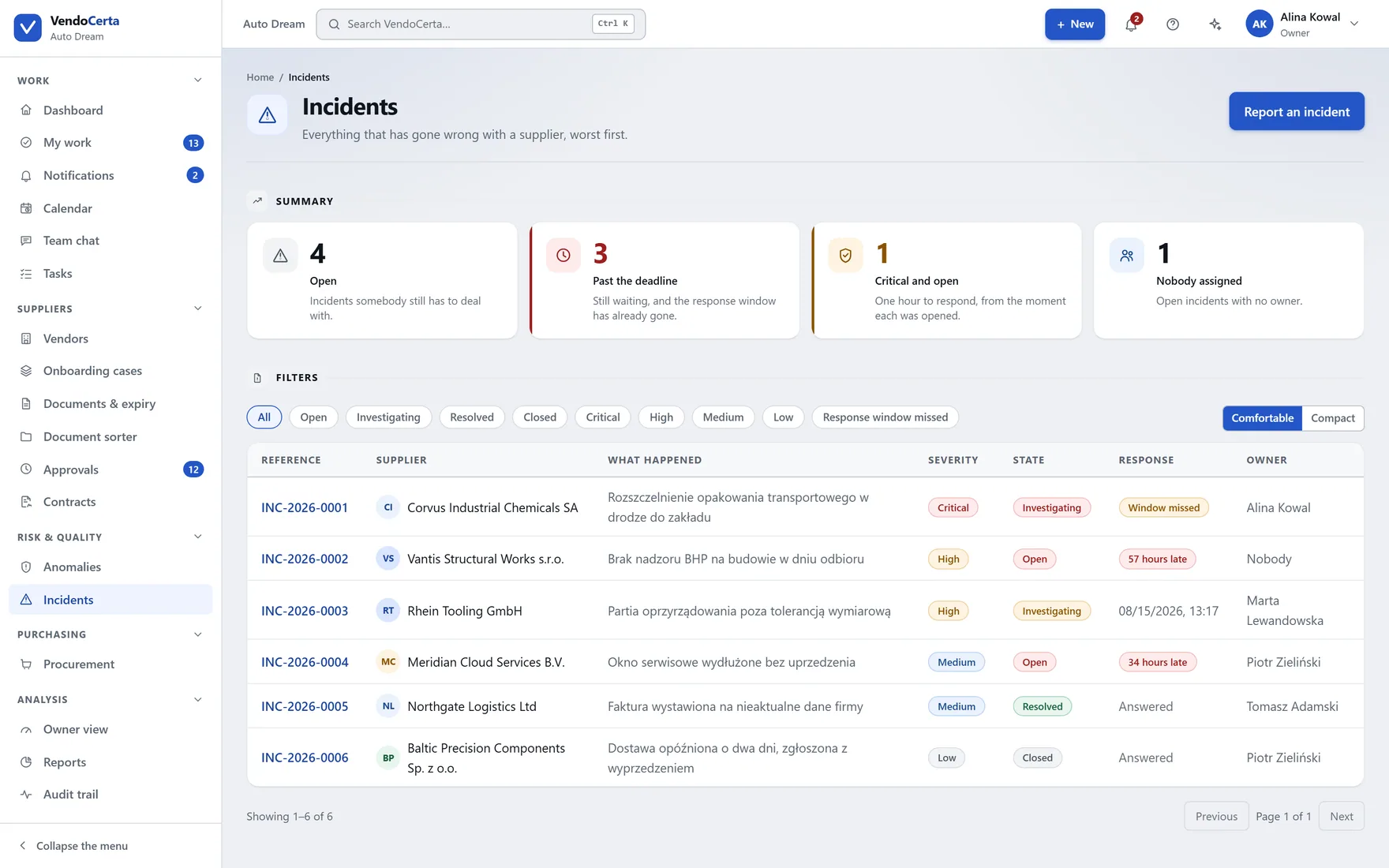
app.vendocerta.com/incidents
Incidents raised against suppliers, with their response windows.

Incidents

Something went wrong with a delivery or a supplier: raised, given a response window, and tracked against the record rather than an e-mail thread.
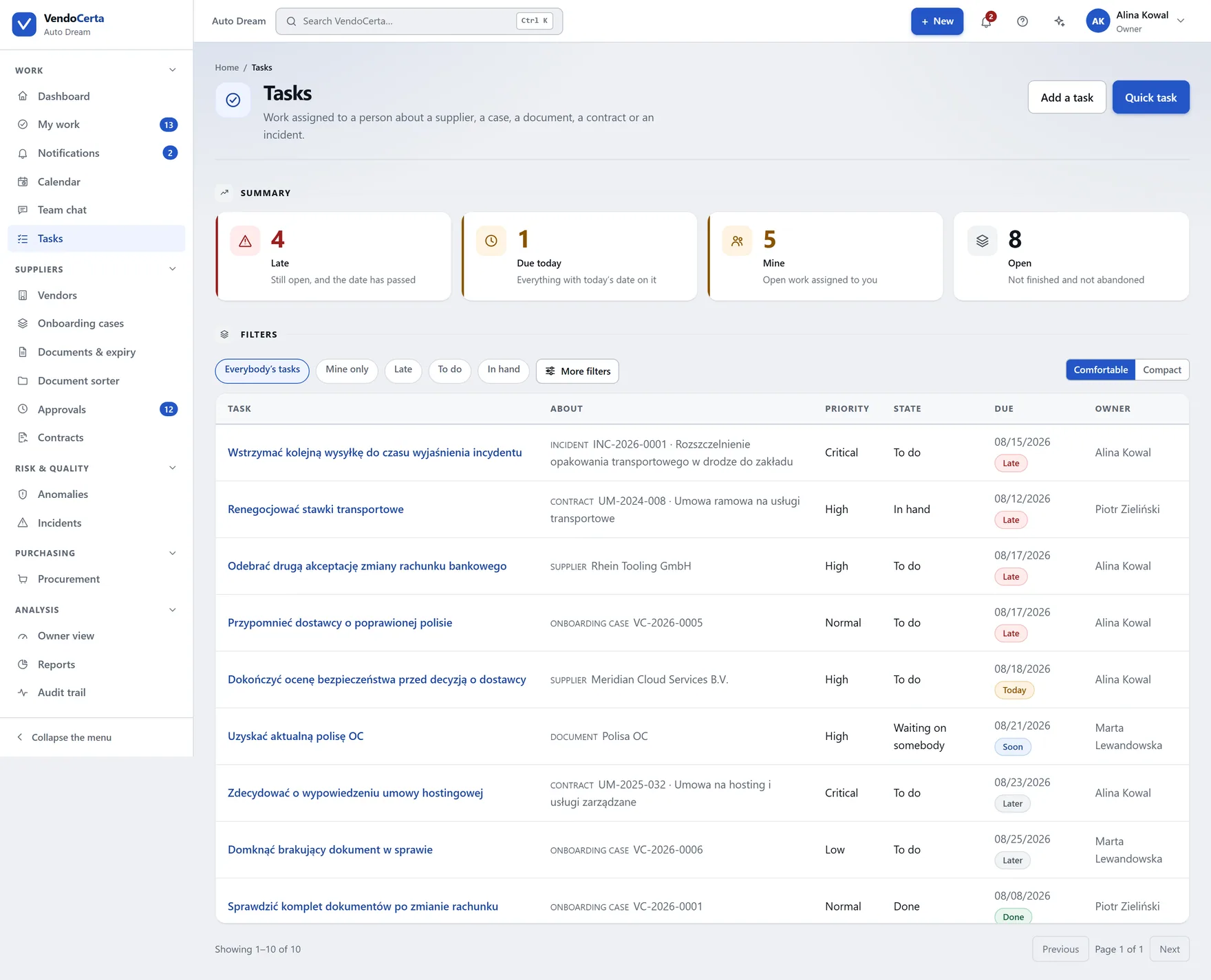
app.vendocerta.com/tasks
Tasks assigned to a person or a role, with due dates.

Tasks

Work assigned to a person or a role, with a due date, appearing in their queue.
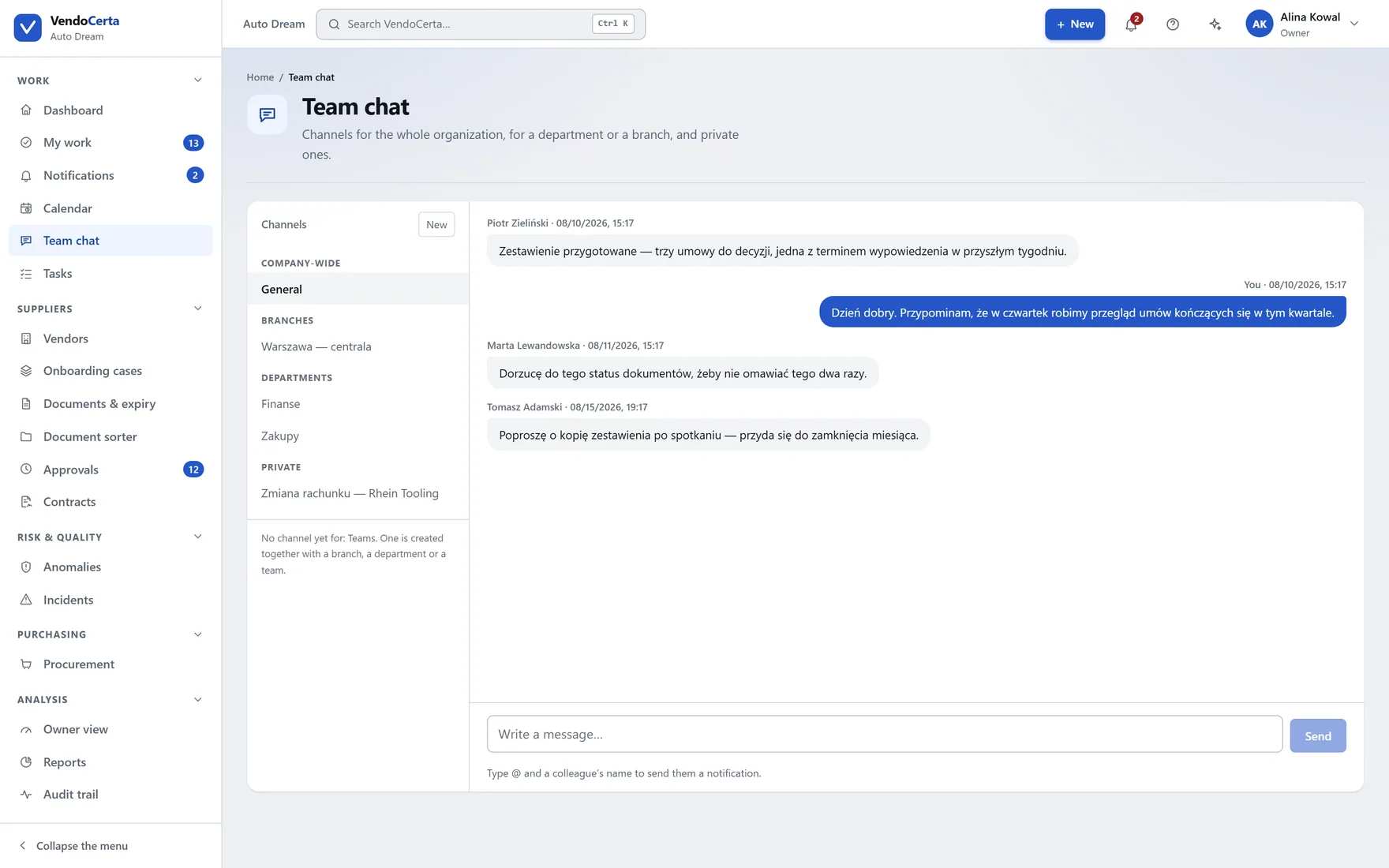
app.vendocerta.com/chat
Team chat inside the installation.

Team chat

The reasoning behind a decision stays in the installation with the record, instead of in somebody’s inbox.
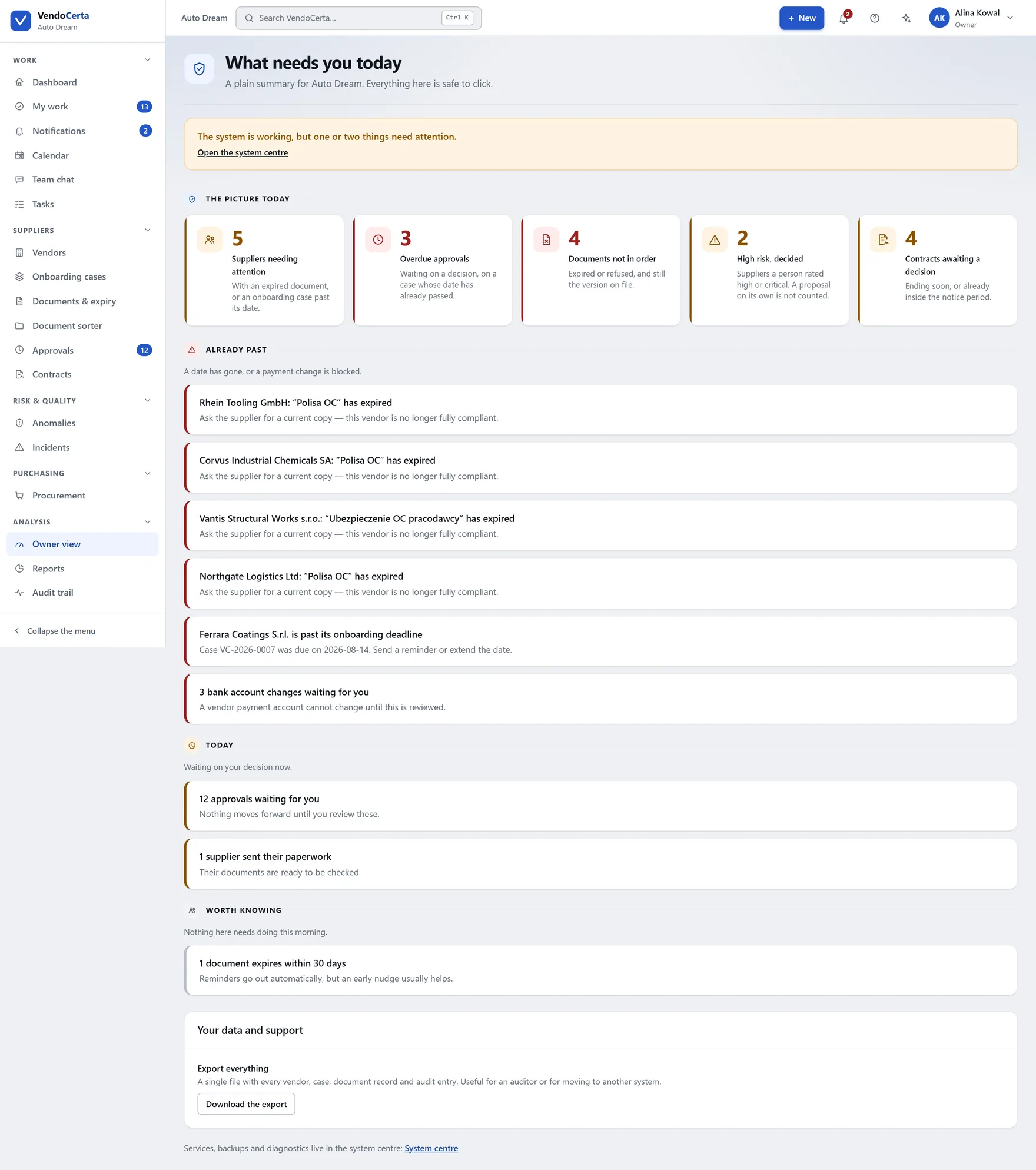
app.vendocerta.com/owner-view
Owner view: a few figures, then the matters genuinely needing a human decision grouped by deadline — already overdue, today, this week, and worth knowing.

Analysis

Owner view is not a second dashboard.

A tile with a number on the dashboard becomes, here, a named supplier, a specific deadline and a specific decision — grouped by urgency: already overdue, today, this week, worth knowing. An empty group does not appear at all.
  • Deliberately few figuresUp to five. A figure you have no right to see disappears entirely rather than greying out — and at zero every tile stays neutral, because red for nothing is noise.
  • Only confirmed risk counts“High risk, confirmed” counts suppliers a human has assessed. A model’s own suggestion never enters the figure until somebody agrees with it.
  • Silence means healthyThe coloured card about installation health appears only when something is genuinely wrong. Its absence is the good news, not a gap.
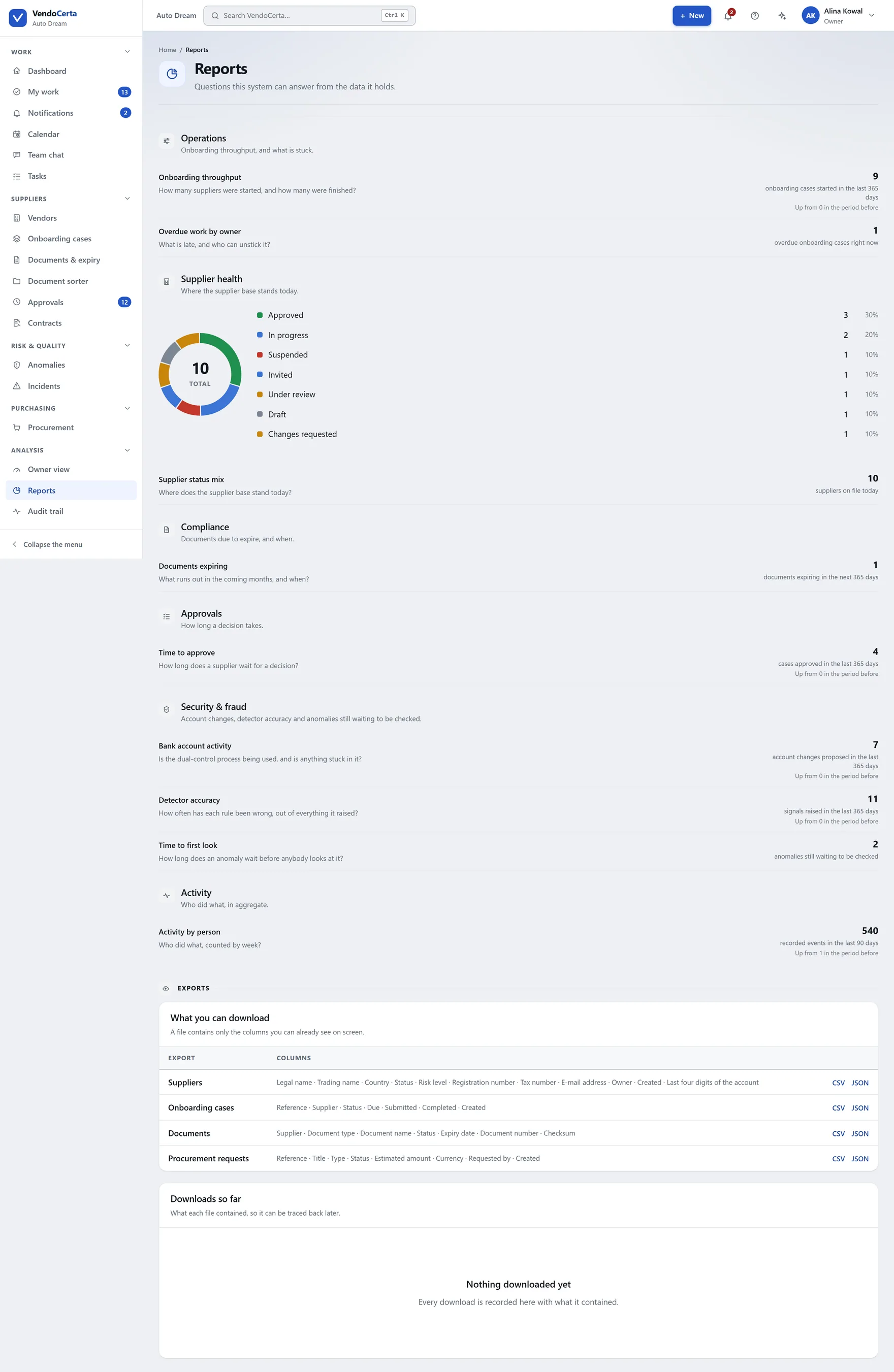
app.vendocerta.com/reports
Standing reports over the register, the documents and the decisions.

Reports

Standing reports across the register, the documents and the decisions — drawn from the same records the audit trail is written from.
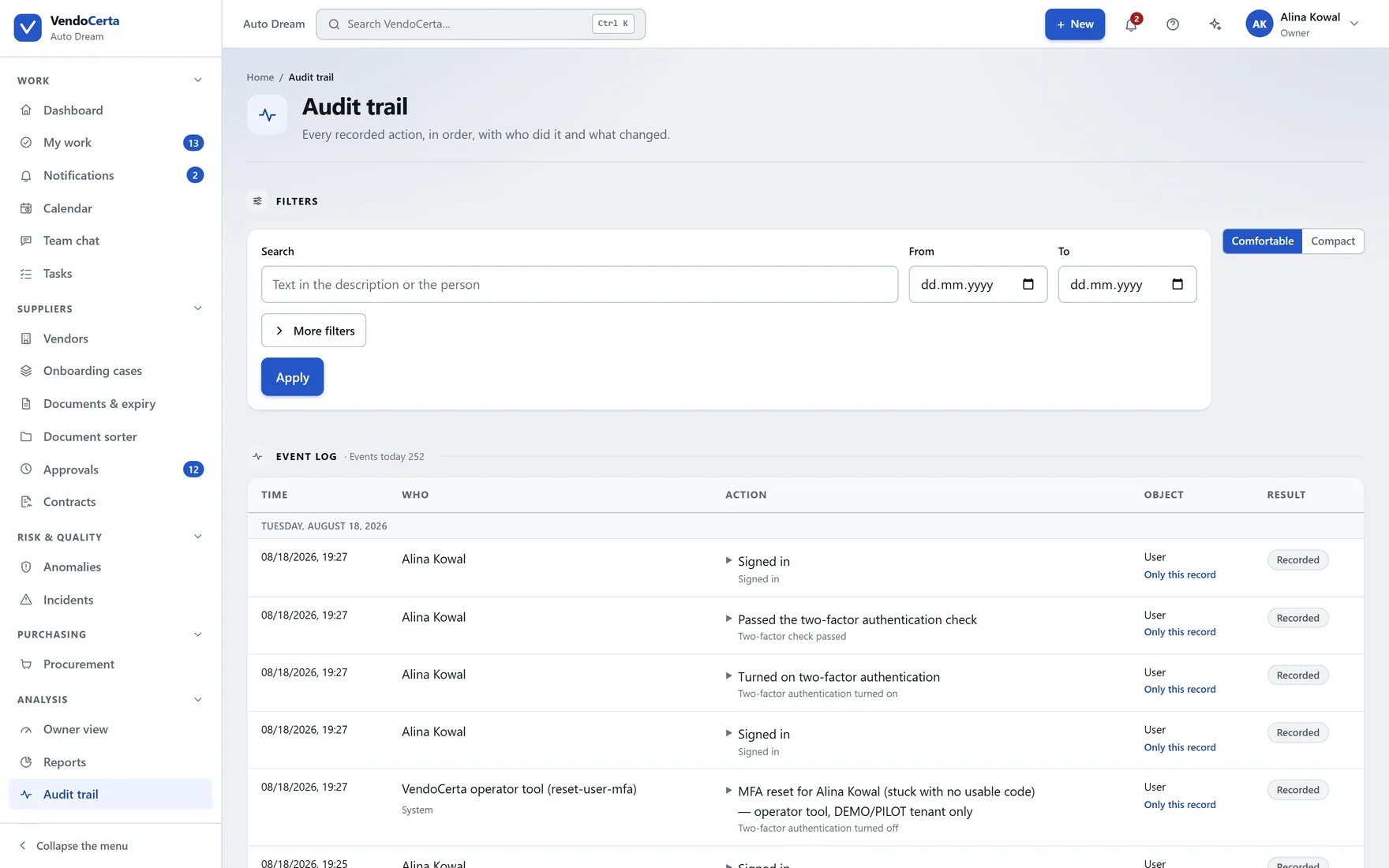
app.vendocerta.com/audit
The audit trail: a five-column table of time, who, action, object and result, with filters for category, event type, object, person and date range.

Audit trail

Who did what, when, and — for a data change — what the values were on both sides of it. No role can edit or delete an entry.

The assistant

Beside the screen, never on top of it.

Called from the sparkle in the top bar on any screen. On a wide display it docks as a resizable column beside the content — so you can still see the thing you are asking about — and only covers it when there is genuinely no room.

  • It knows where you are

    The assistant reads the screen and the record from the page address, which is why “why can’t I approve them?” works without naming the supplier.

  • It shows its working

    Answers end with a collapsible “Based on” — the manual excerpts or specific records it relied on — and a few buttons suggesting the next question.

  • It escalates honestly

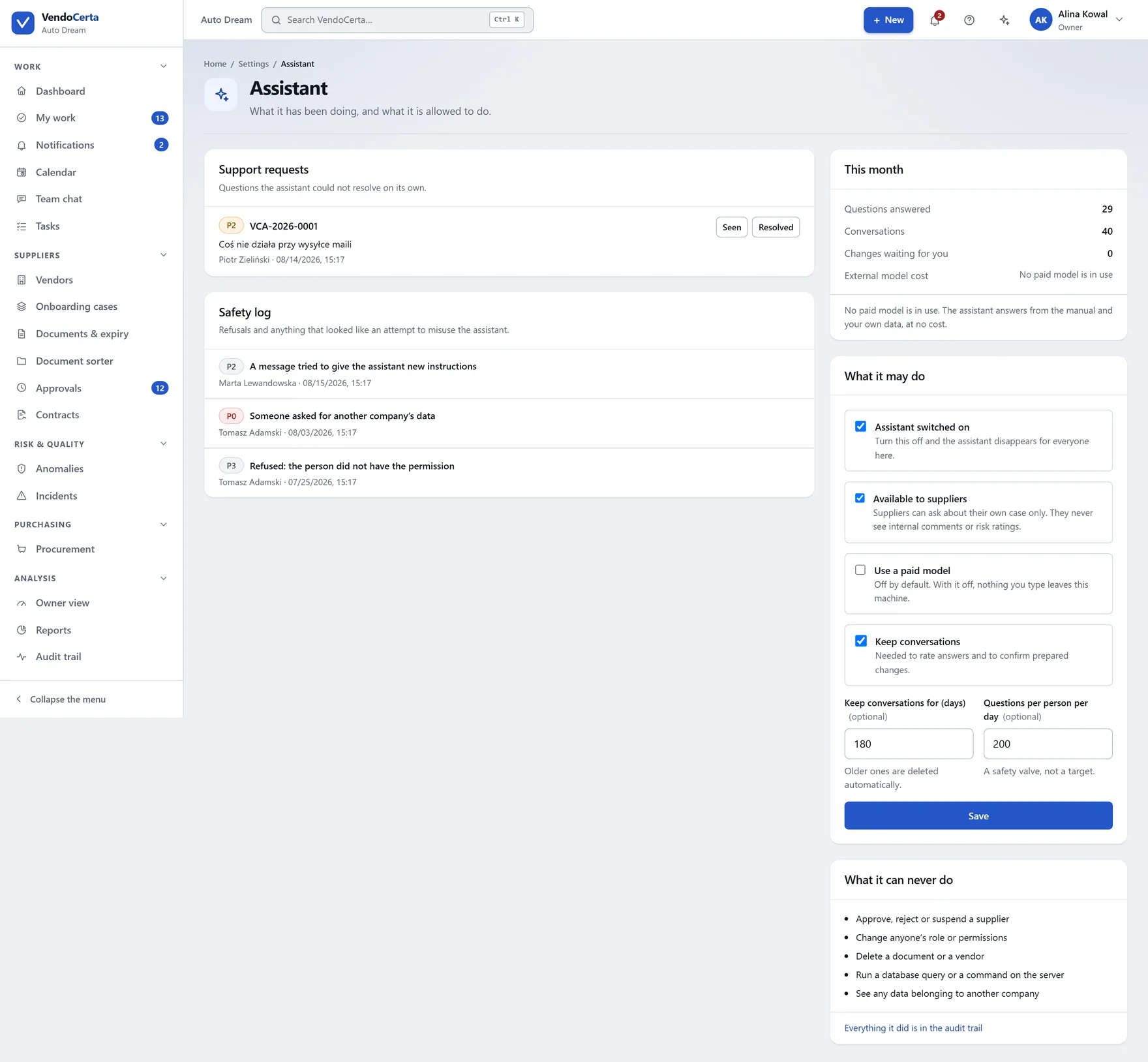
    Ordinary uncertainty just says so. A real ticket, with a readable reference, is raised when you press “didn’t help”, when tools fail repeatedly, or when the language model provider is briefly unavailable.

  • Suppliers get it too

    A scaled-down version sits in the supplier’s own onboarding portal, answering only about their case and their form.

The hard limit

It never approves, rejects or suspends a supplier, never changes a role, and never deletes anything — even asked directly. Anything it would do is written down first and waits for a human click, and permissions are re-checked at that click against the person making it.
app.vendocerta.com/settings/assistant
Assistant settings, including the queue of escalated support tickets.

Assistant settings, where administrators also see the queue of escalated tickets.

app.vendocerta.com/procurement
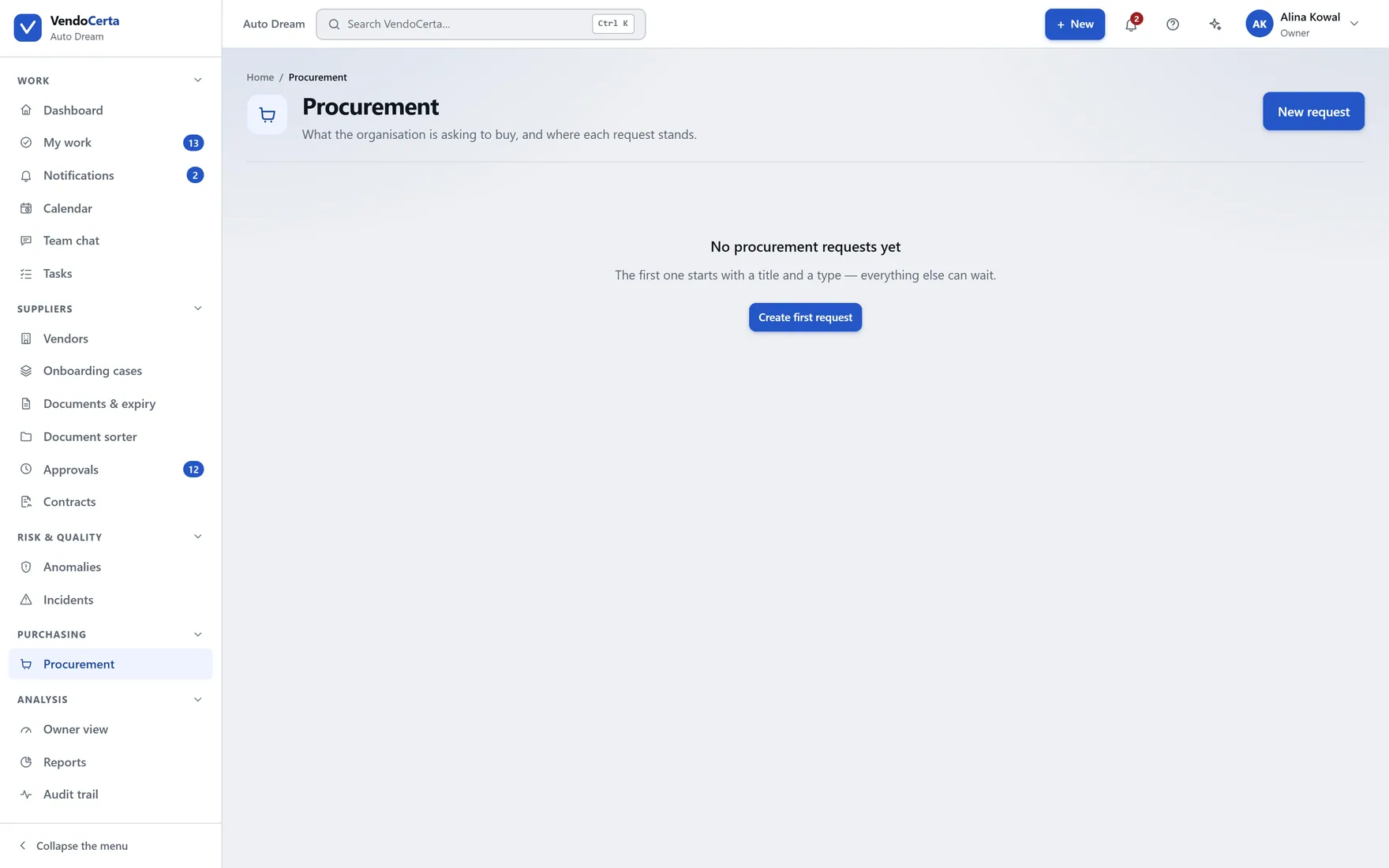
Procurement intake: purchase requests, who raised them and what stage they are at.

Purchasing

The front door to buying, against suppliers already cleared.

Procurement intake is the first VendoCerta Plus module to ship — and the one the entitlement system was first enforced through for real, across pages, API routes, navigation, calendar, search, My work and the assistant. Who asked, for what, against which supplier, and who has to agree.
  • A request, not an e-mailRaised in one place with the information the approver needs attached, rather than assembled from a thread afterwards.
  • Only against approved suppliersThe register is upstream of purchasing on purpose: a request names a supplier the company has already cleared.
  • The rest of the pack is named, not builtRFQ, purchase orders, goods receipt, products, inventory and warehouse are reserved on the plan and marked roadmap wherever they appear. The product refuses them until they ship.
app.vendocerta.com/procurement/new
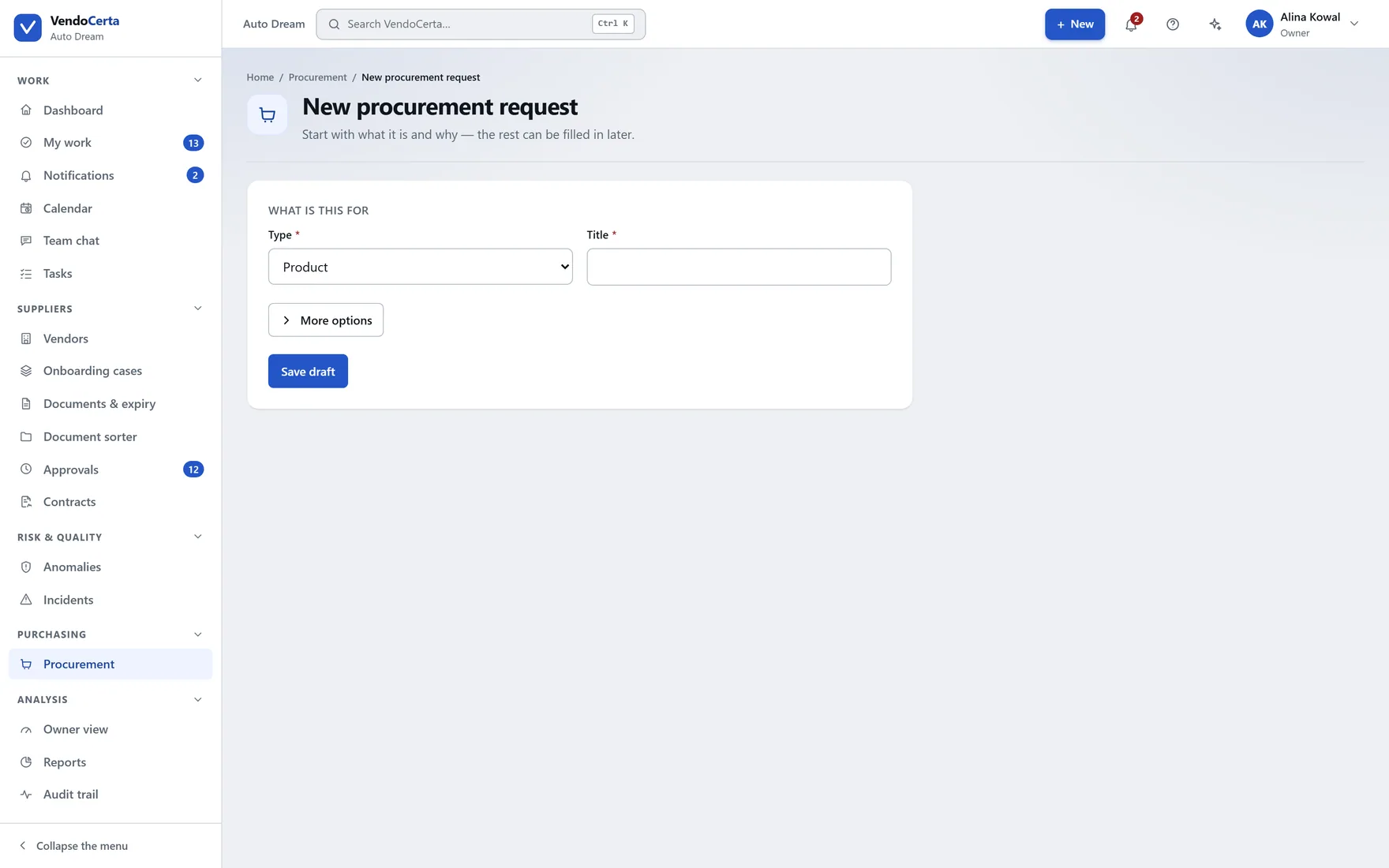
Raising a new procurement intake request.

Raising a request.

Administration

Company policy and machine health are two different screens.

Settings decides what your organisation’s process is. The system centre reports on what the installation is doing. They were one screen once; splitting them means the person running the business and the person running the server are not looking at each other’s work.
app.vendocerta.com/settings
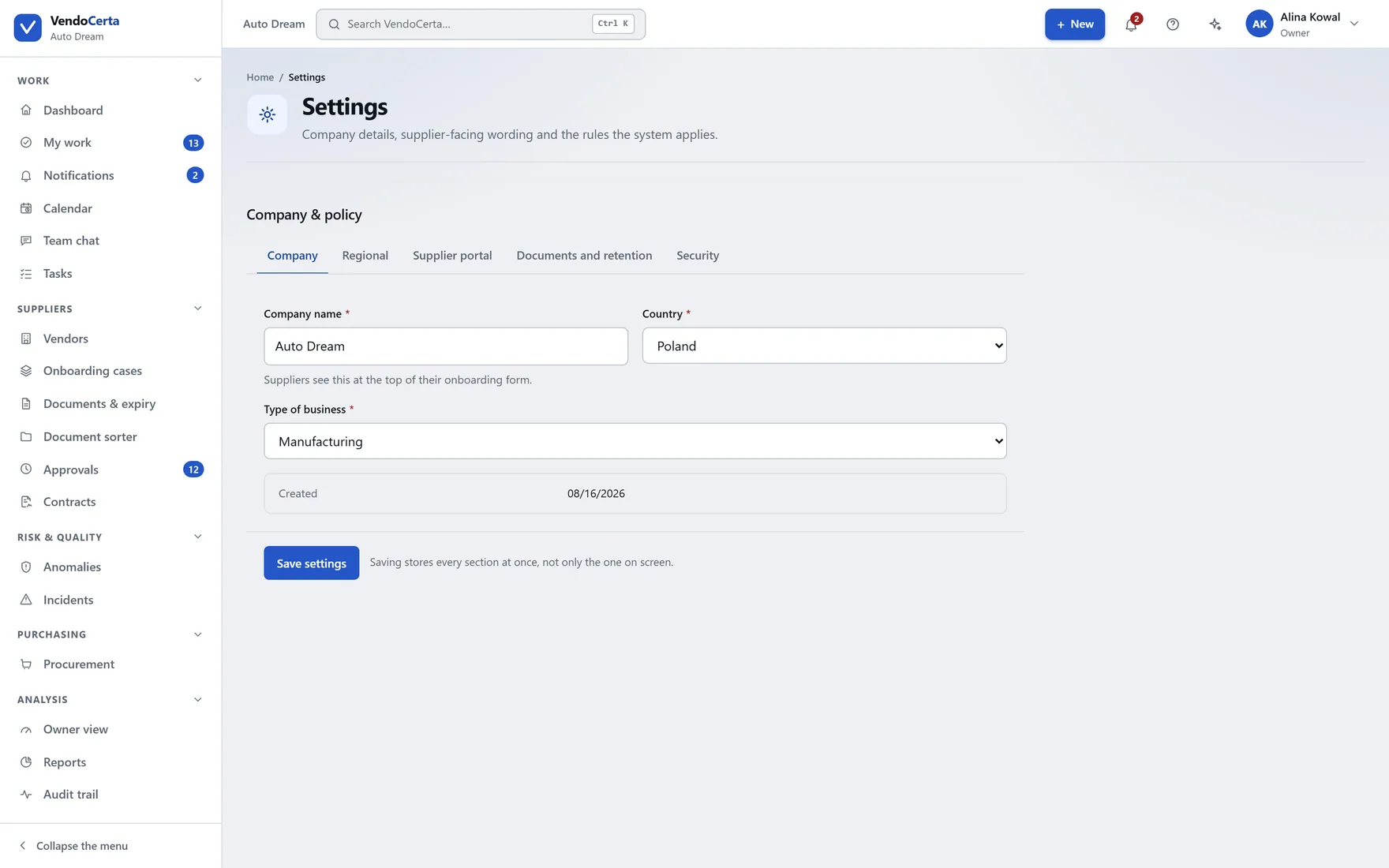
Company settings: name, support address, welcome message and defaults for new suppliers.

Company settings

Name and support address the supplier sees, welcome message, defaults for a new supplier — and the security-relevant numbers: how long an invitation link lives, how long documents are kept, the largest file a supplier may upload.
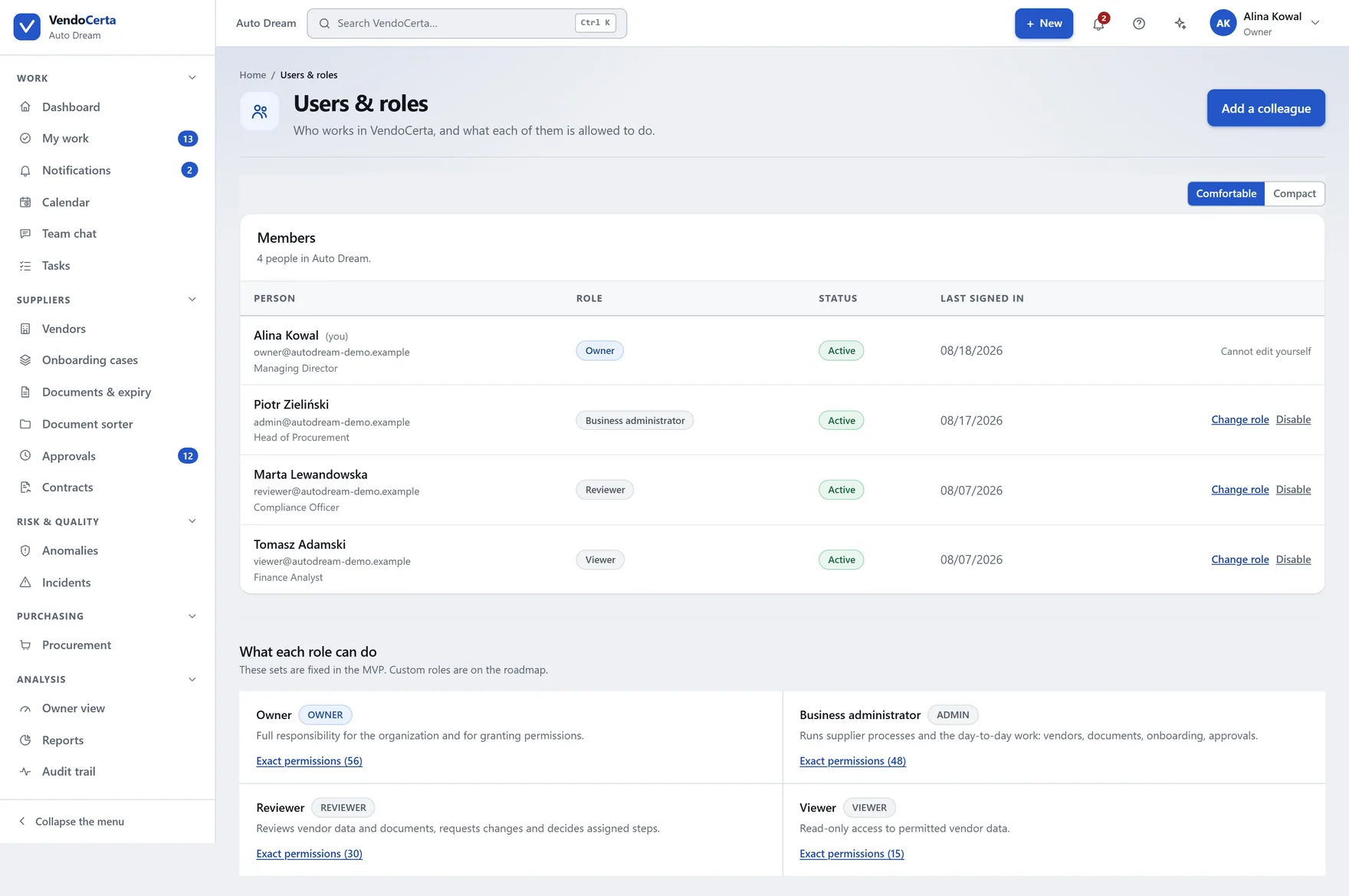
app.vendocerta.com/users
Staff and their roles: owner, business administrator, system administrator, reviewer and observer.

Users & roles

Five roles with deliberately different blind spots. Nobody can change their own role, and the last remaining owner cannot be demoted or disabled.
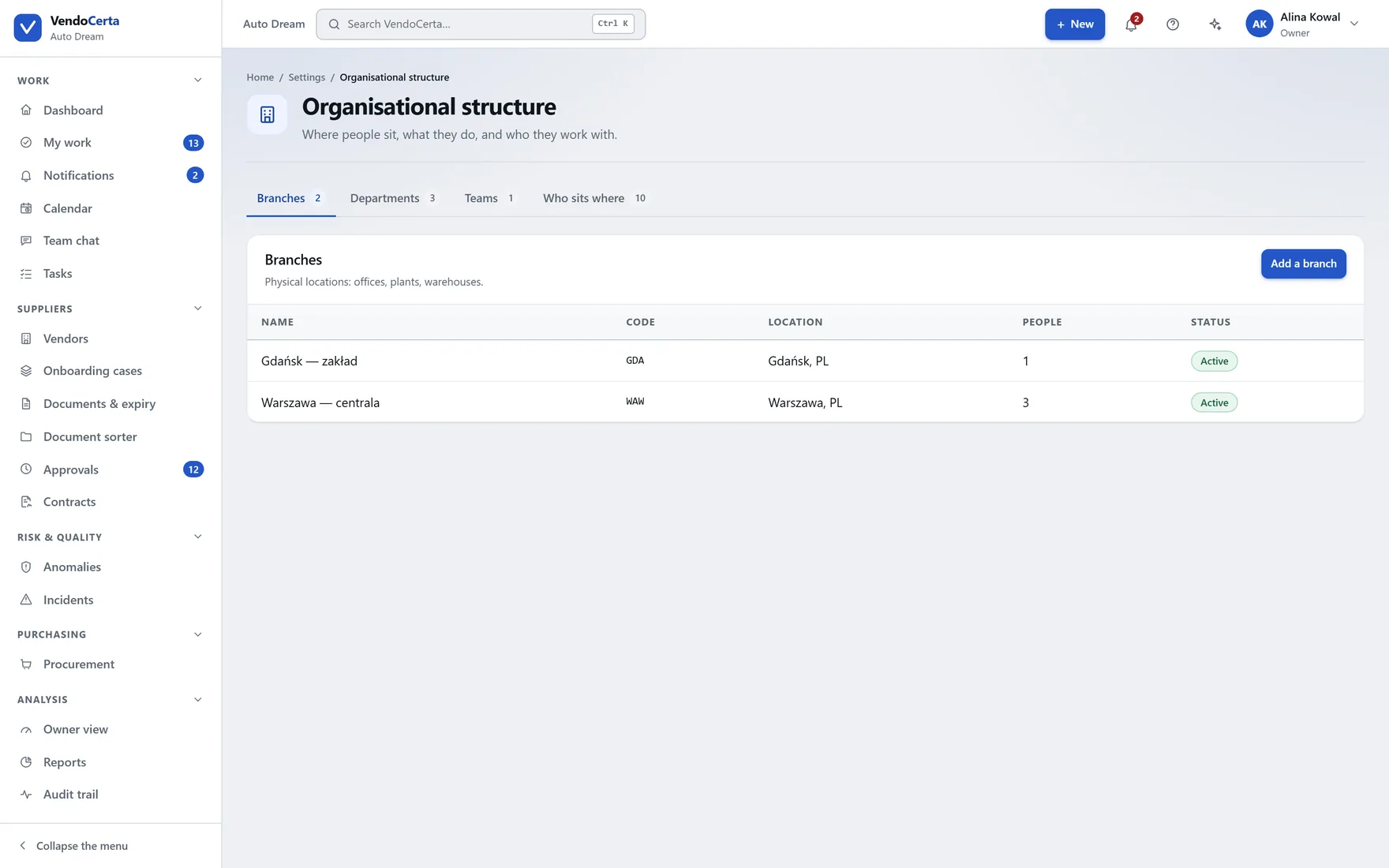
app.vendocerta.com/settings/structure
Organisational structure settings.

Structure

How the organisation is arranged, for installations where the supplier side is not one flat team.
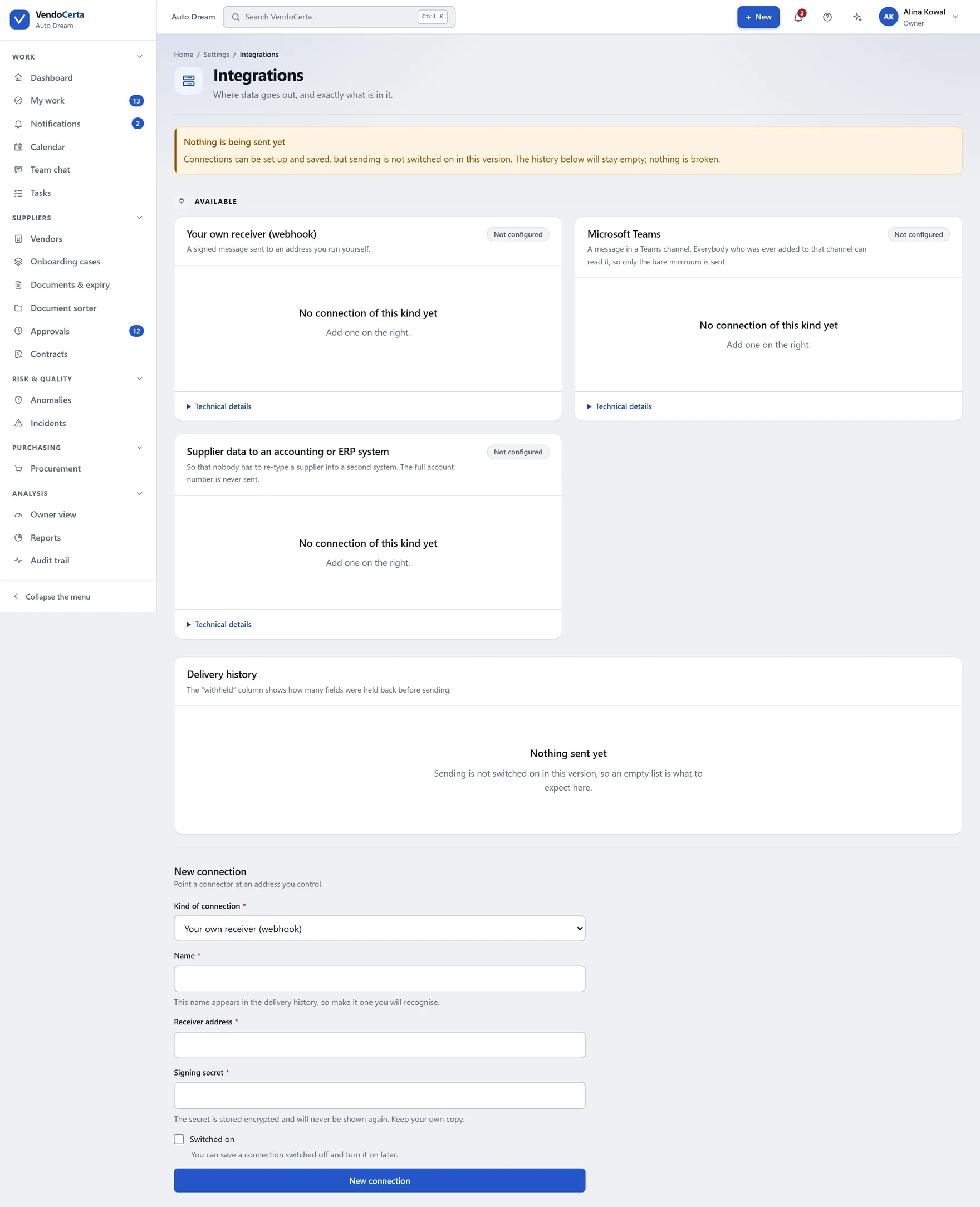
app.vendocerta.com/settings/integrations
Integration configuration, available to the owner role only.

Integrations

Owner-only, deliberately: connecting the installation to anything else is not something an administrator can do quietly.
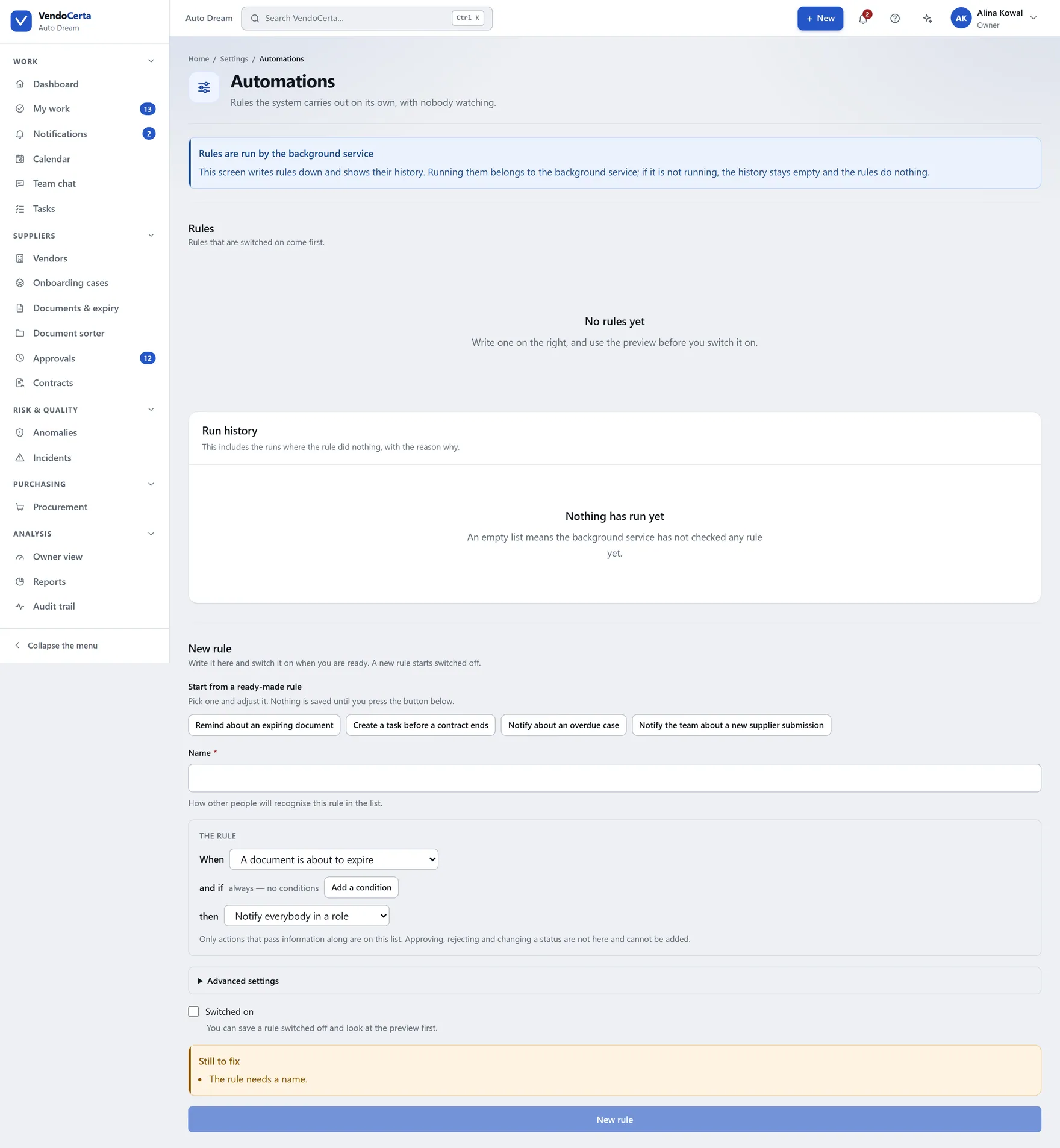
app.vendocerta.com/settings/automations
Automations, shipping as a preview.

Automations

Rules acting on events the product already records. Shipping as a preview — its own description still owes an honesty pass before we call it finished.
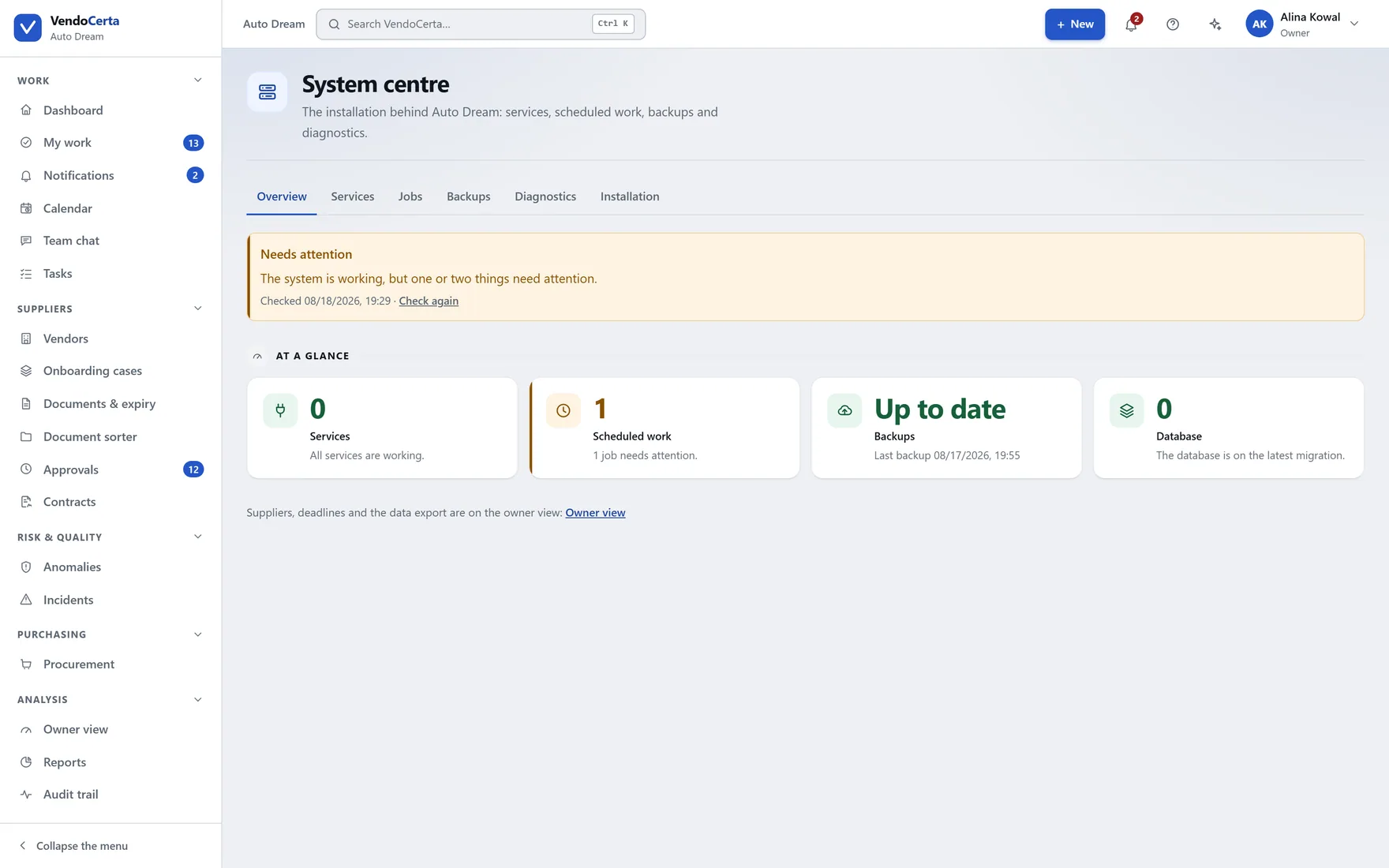
app.vendocerta.com/system
The system centre: services, backups, background jobs, diagnostics and version — deliberately separate from the business screens.

System centre

Services, backups, background jobs, diagnostics and version. Its diagnostics tab produces a support report of versions, counts and masked log lines — never document contents or personal data.
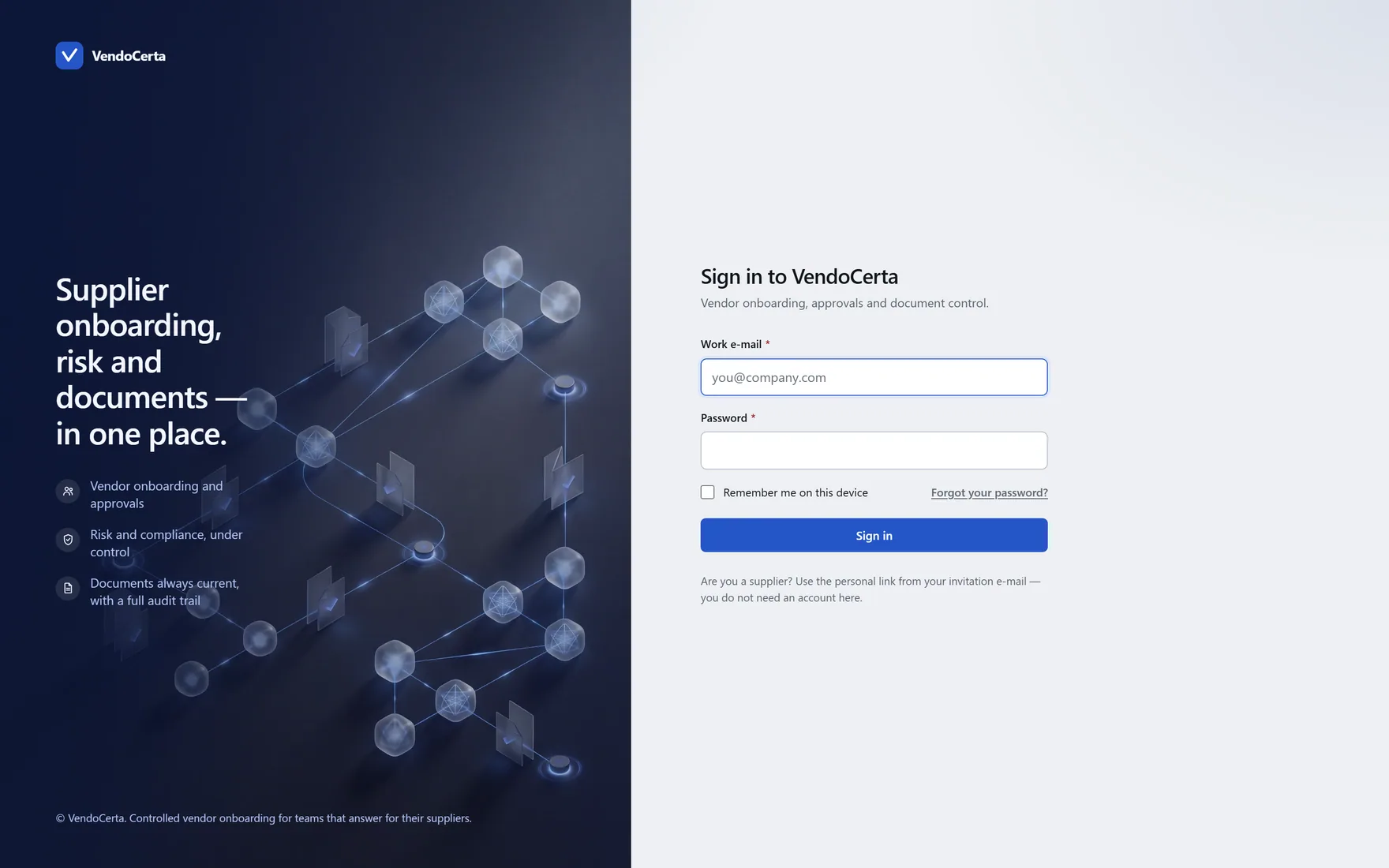
app.vendocerta.com/login
The sign-in screen, with the navy panel VendoCerta puts beside its sign-in form.

The sign-in screen. The navy panel beside the form is where this website’s dark bands take their colour from — the same token, declared once in the product.

Getting in

Two factors, and no hints for strangers.

Owner, business administrator, system administrator and reviewer cannot skip the second factor — on first sign-in the product takes them to set it up before it will show them anything. An observer may turn it on and does not have to.

  • A wrong sign-in says only that the e-mail and password do not match — never which of the two was wrong.
  • Any authenticator app works: Google, Microsoft, 1Password, Aegis.
  • Backup codes are issued at setup; losing the phone without them means asking an administrator.
  • A supplier never signs in here at all. This screen is for your own staff.

Want to see it move rather than sit still?

A demo runs against your kind of supplier, not ours.